

Let's make a C64 game.
Rastlet turns an idea into a real Commodore 64 game you can play in the browser, send to a friend or load on the machine itself. No code, nothing to install. Pick where you want to start; each journey takes a few minutes and ends with something you made.
Where do you want to start?
New here? Start with Make your first game. The others build on it.
Just play something
Try a finished game in your browser before you make anything.
START ▶ 5 MINMake your first game
Take a finished game, change it by hand and with Rastlet, and send it to a friend.
START HERE ▶ 5 MINTurn my idea into a game
Describe the game in a sentence and let Rastlet build the whole thing.
START ▶ 10 MINMake a scrolling adventure
A long trail that scrolls up the screen: arrange it, fill it with enemies and treasure.
START ▶ 10 MINMake a platformer
Run and jump to the right across a whole level: arrange it, pick how the hero jumps, play it.
START ▶ 10 MINDraw your own world
Paint any level cell by cell in the World editor: walls, symbols, cave tiles or a platformer's ground.
START ▶ 15 MINMake a quest
Rooms to walk through, things to look at, take and use, a story of puzzles, and a check that it can be won.
START ▶ 1 MINShare it with a friend
One link that plays your game on any device, a phone too, with no account.
START ▶ 5 MINPut it on a real C64
Download the program and load it on the machine, an Ultimate or an emulator.
START ▶Just play something
Before you make anything, play what Rastlet makes. Every game here is a real Commodore 64 program running in your browser.
-
1
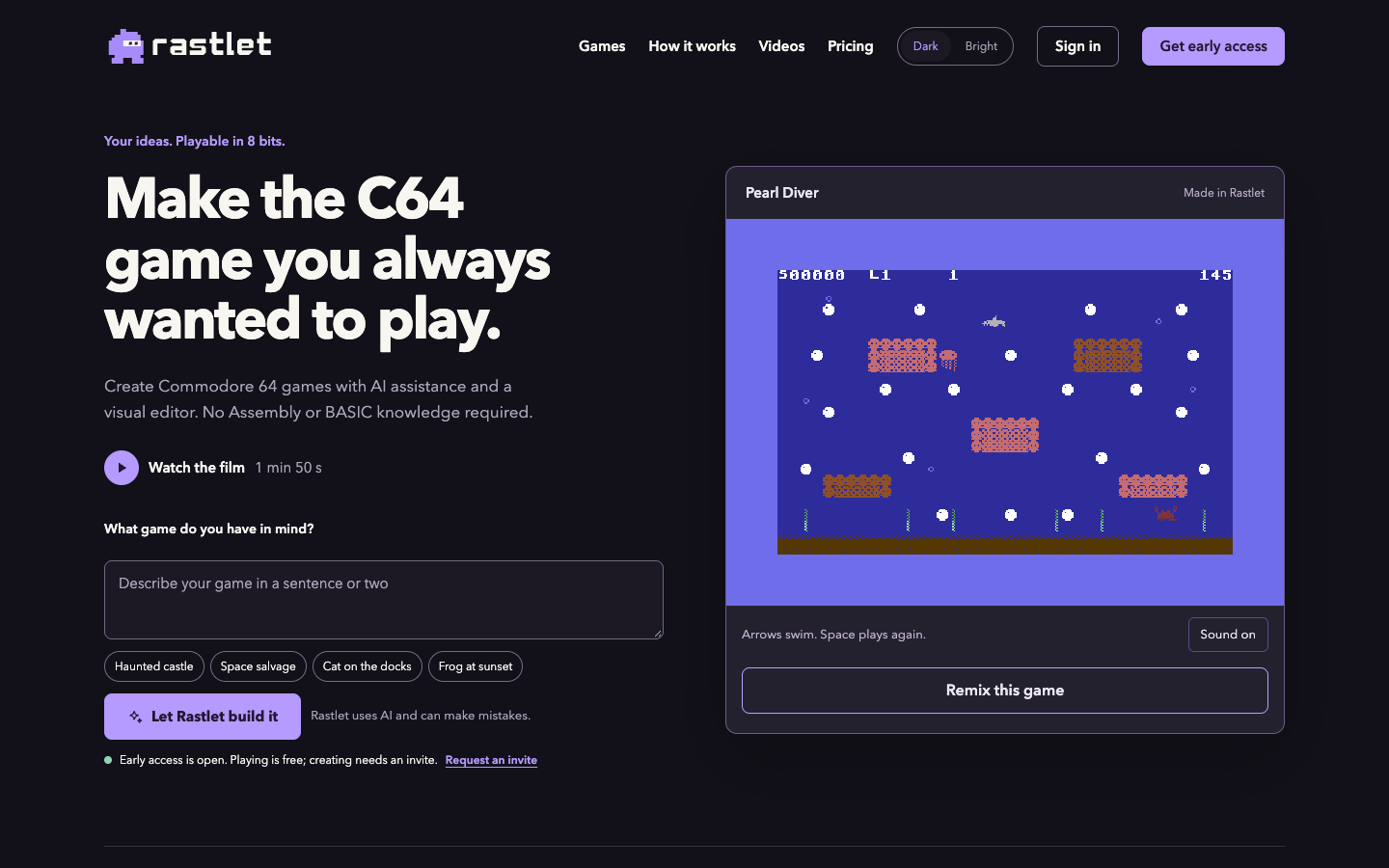
Play the game on the home page
Open rastlet.app. A game is already running on the right. Click it, or tap it on a phone, and play with the arrow keys or the on-screen pad. Space plays again after a game ends.
Browsers start silent: press Sound on under the game for the SID music.
-
2
Try another
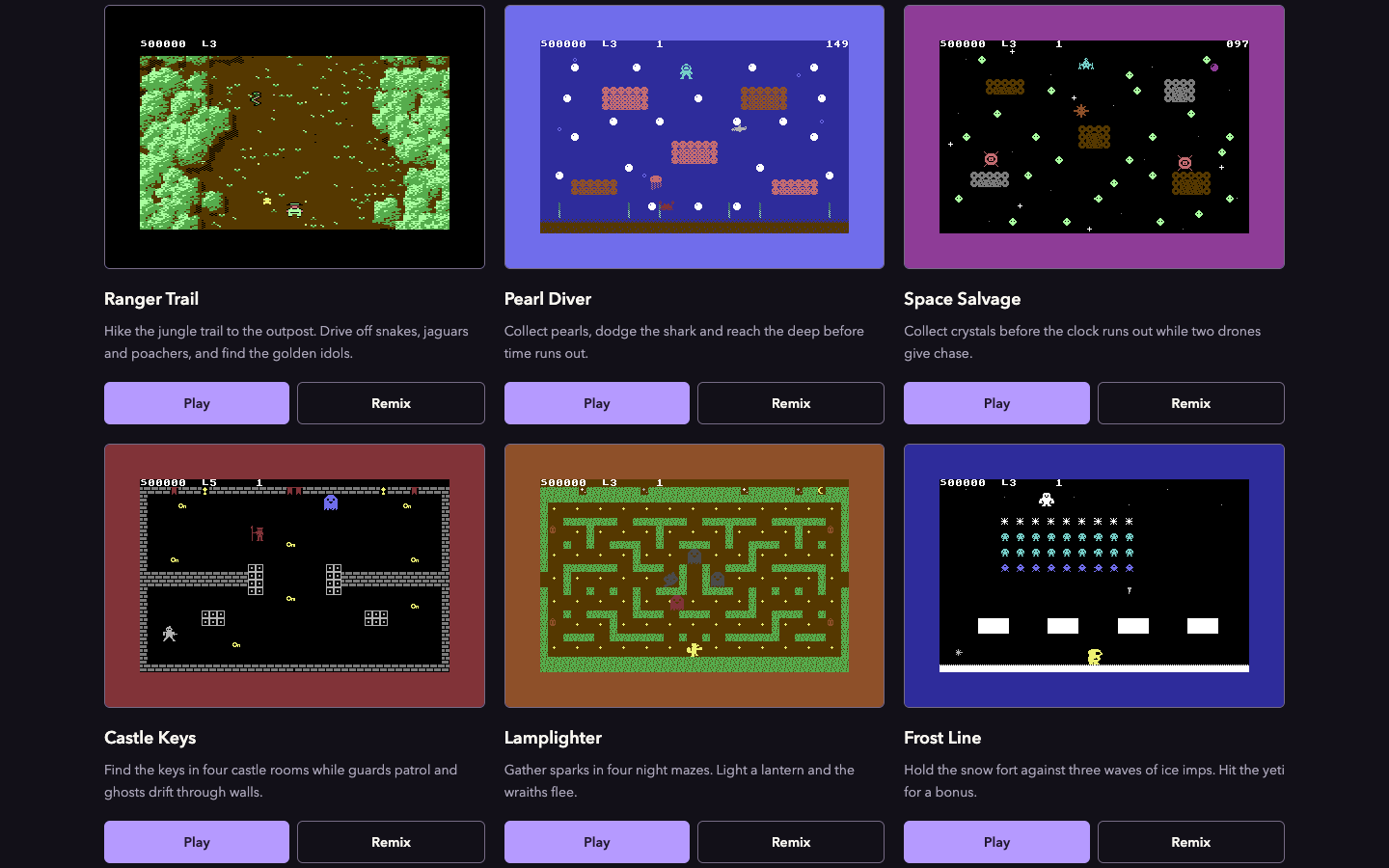
Scroll down to Play it. Then make it yours. and press Play on any game: a scrolling jungle trail, a castle maze, a wave of ice imps. It plays right there.
-
3
Found one you like? Remix it
Press Remix under a game, or Remix this game under the one at the top. Rastlet asks for an account first and keeps your choice while you sign in, then opens your own copy in the Studio.
New to Rastlet? Enter your email on the card and choose Email me a link, or Continue with Google. Your 14-day free trial starts with your first sign-in; no card required.
Make your first game
The quickest way to learn Rastlet is to change a game that already works. You'll make Battery Collector yours: play it, change it by hand, ask Rastlet for a change, and send it to someone.
-
1
Pick a game to start from
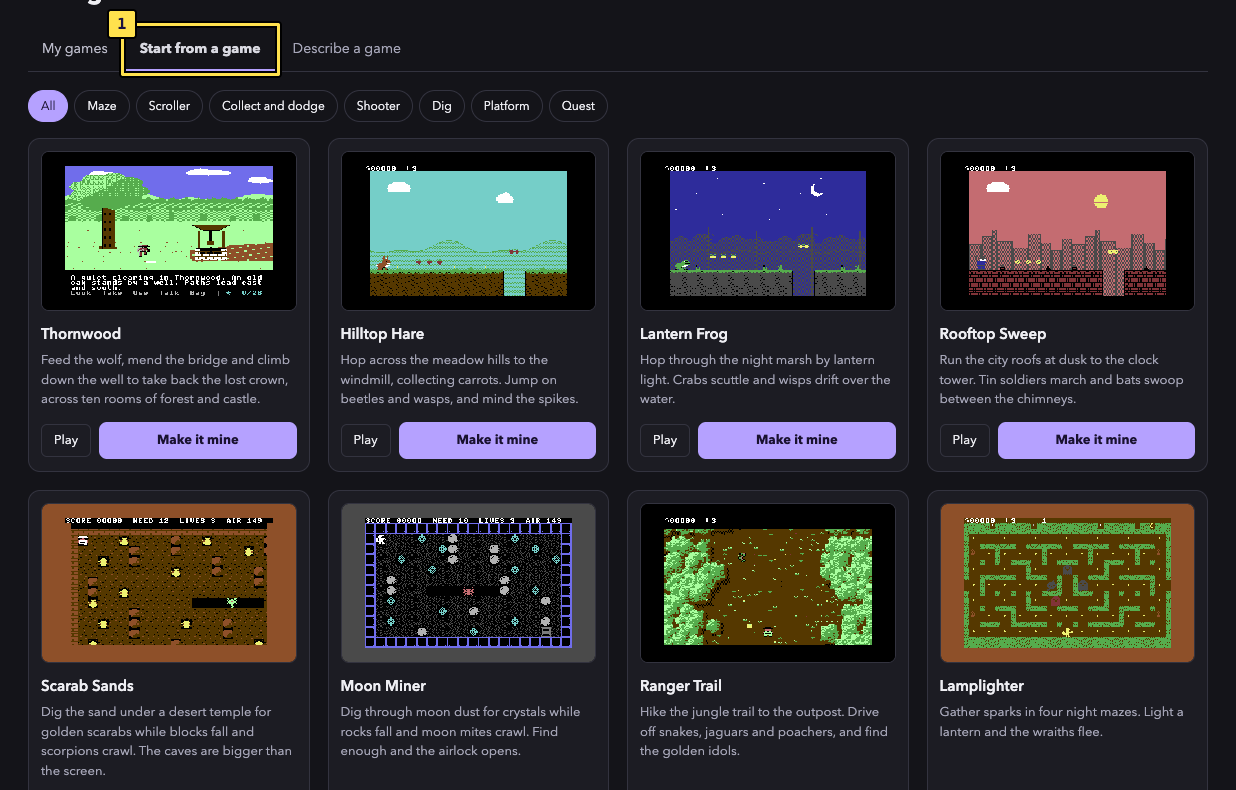
Open the Studio. On Start, choose Start from a game 1, then Make it mine 2 under Battery Collector.
Battery Collector is the simplest starter, with room to grow: another enemy, a new rule and a new sound all fit.
-
2
Get your bearings
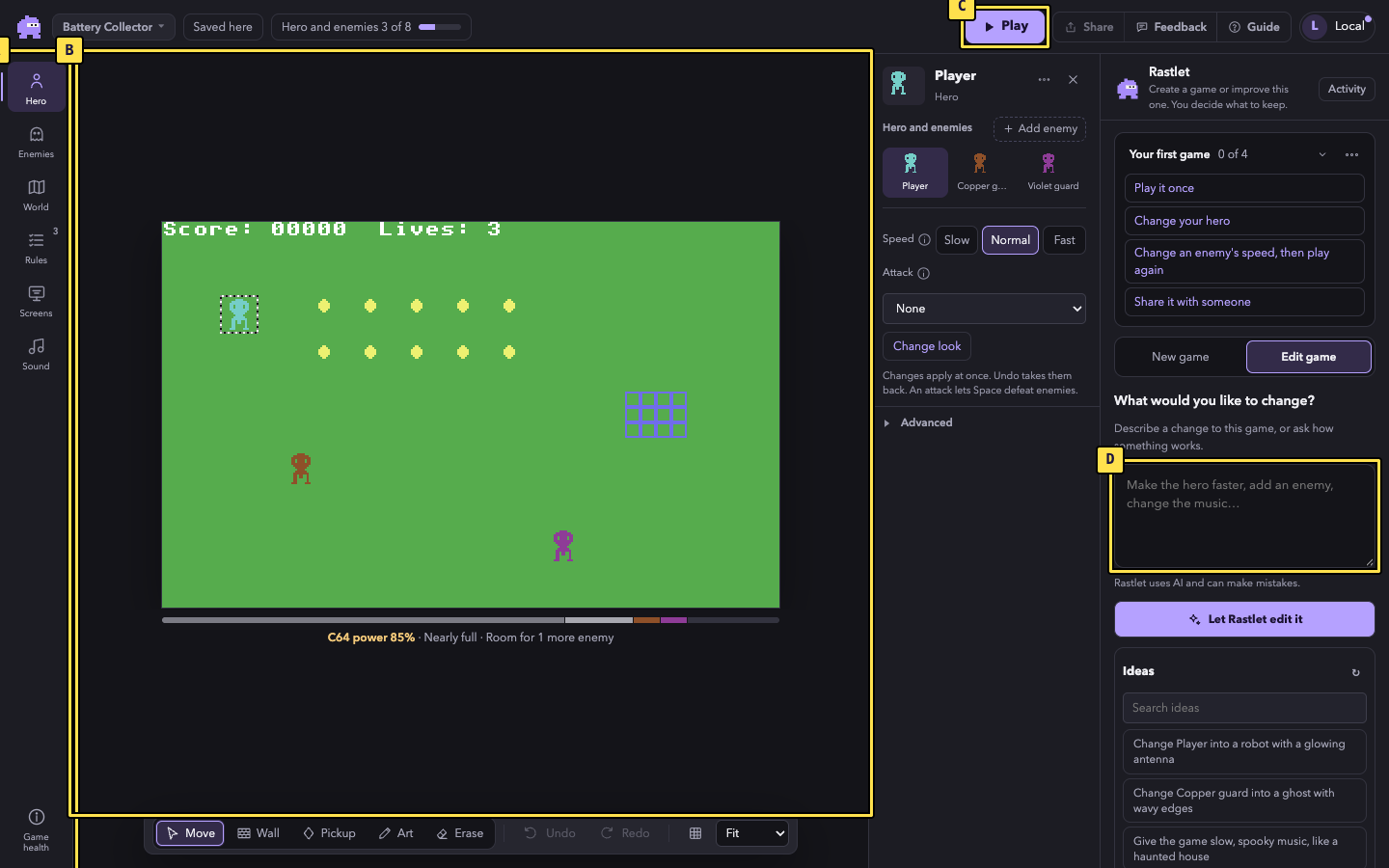
Four places matter for now:
A Chapters: what you're working on, from the hero to the sound.
B The stage: your game at real C64 size. Drag things around on it.
C Play: builds and runs your game.
D Rastlet: describe a change in plain words.The card beside the stage shows the settings of whatever you select.
-
3
Play it once
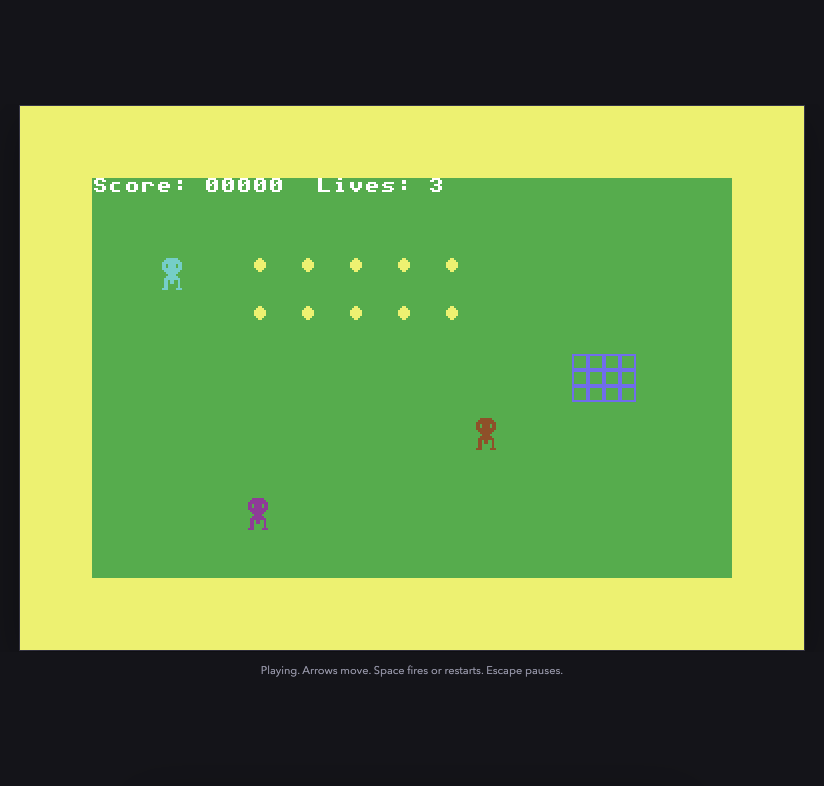
Press Play. Rastlet turns your game into a real C64 program, checks it in two emulators and runs it on the stage, all in a few seconds.
Click the game, collect the batteries with the arrow keys and dodge the guards. Press Escape to give the keyboard back.
Space plays again after you win or lose.
-
4
Change something yourself
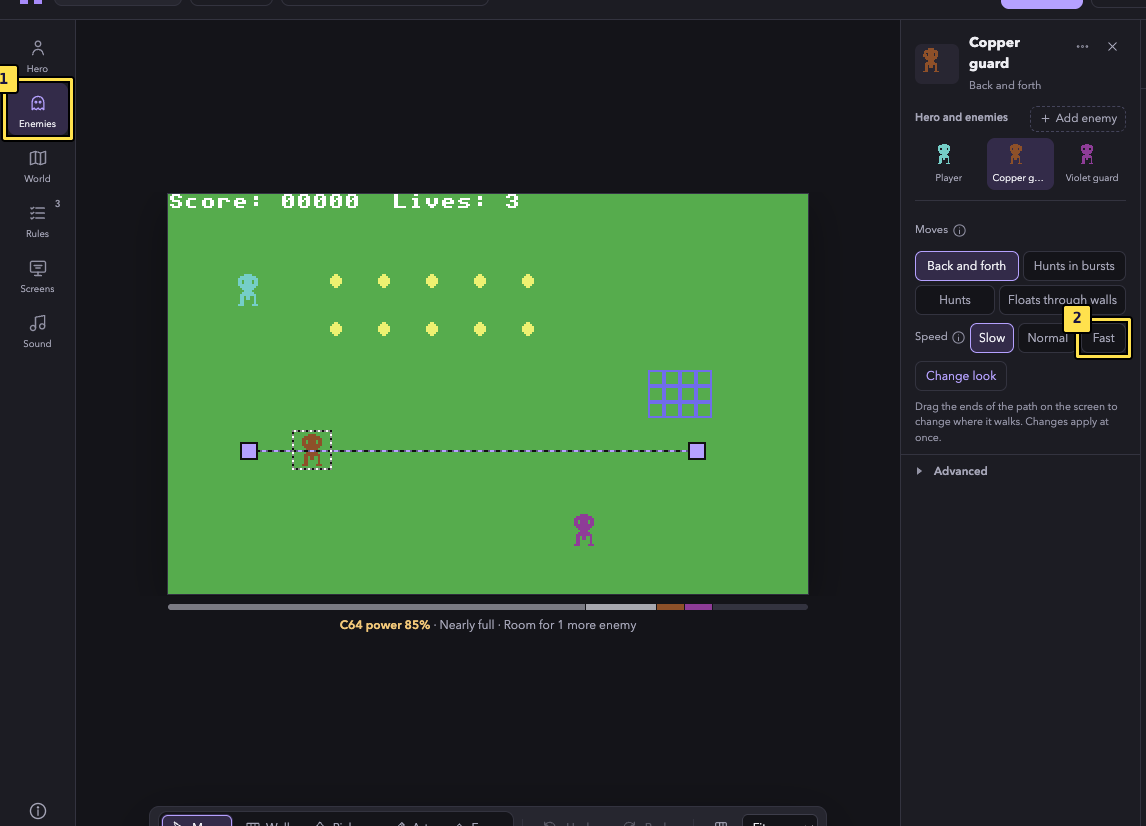
Choose Enemies 1, pick the Copper guard, and press Fast 2. That's it: changes apply at once.
Made a mistake? Undo, under the stage, takes it back. Drag the square handles on the guard's path to change where it walks.
-
5
Ask Rastlet for a change
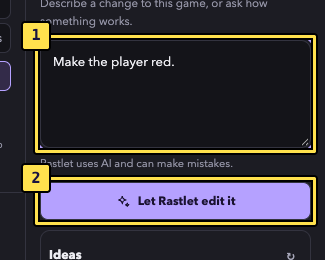
In the box on the right 1, say what you want in your own words, then press Let Rastlet edit it 2.
Make the player red.Bigger asks work too: "add a second level", "make the guards chase me after 30 seconds". Each request uses a credit or two.
-
6
Look, then keep it
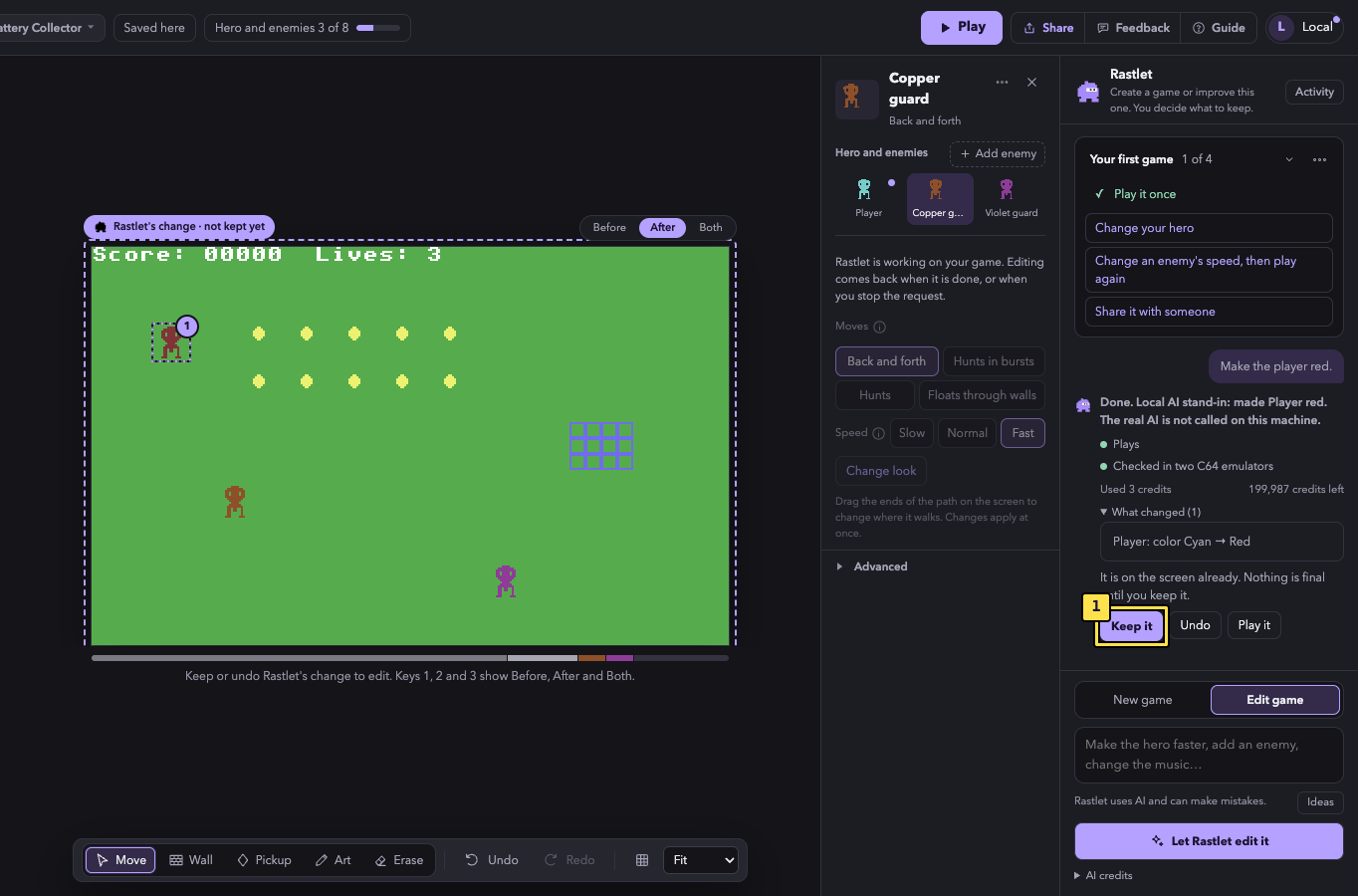
Rastlet makes the change, checks it plays, and shows it on the stage, not kept yet. Flip between Before and After to compare, or press Play it.
Happy? Press Keep it 1. Not quite? Press Undo, or tell Rastlet what to change.
-
7
Play it again, then share it
Press Play once more so the game includes your changes. Then press the share button beside Play and choose Make a link 1.
Send the link to anyone. It plays in any browser, on a phone too, with no account.
Turn my idea into a game
Describe the game you've always wanted to play. Rastlet builds the whole thing, checks that it runs on a C64, and shows it to you before anything changes.
-
1
Describe it
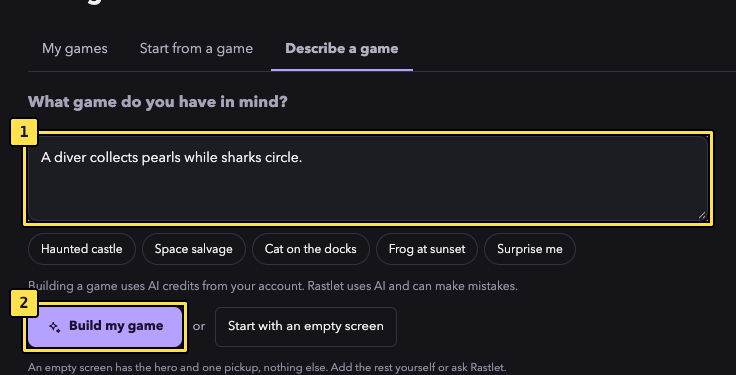
On Start, choose Describe a game. Type your idea in a sentence or two 1, then press Build my game 2.
A diver collects pearls while sharks circle.Say who you are, what you collect, who's after you and how you win. Stuck for ideas? Tap one under the box, or Surprise me.
-
2
Answer a quick question or two
When your idea leaves something open, like the clock, the lives or which setting a scrolling trail runs through, Rastlet asks first. Pick an answer, or let Rastlet choose.
Rastlet makes one-screen games, mazes, waves of invaders and trails that scroll upward. If an idea is out of reach, it builds the closest game it can and tells you what it left out.
-
3
Look at your new game
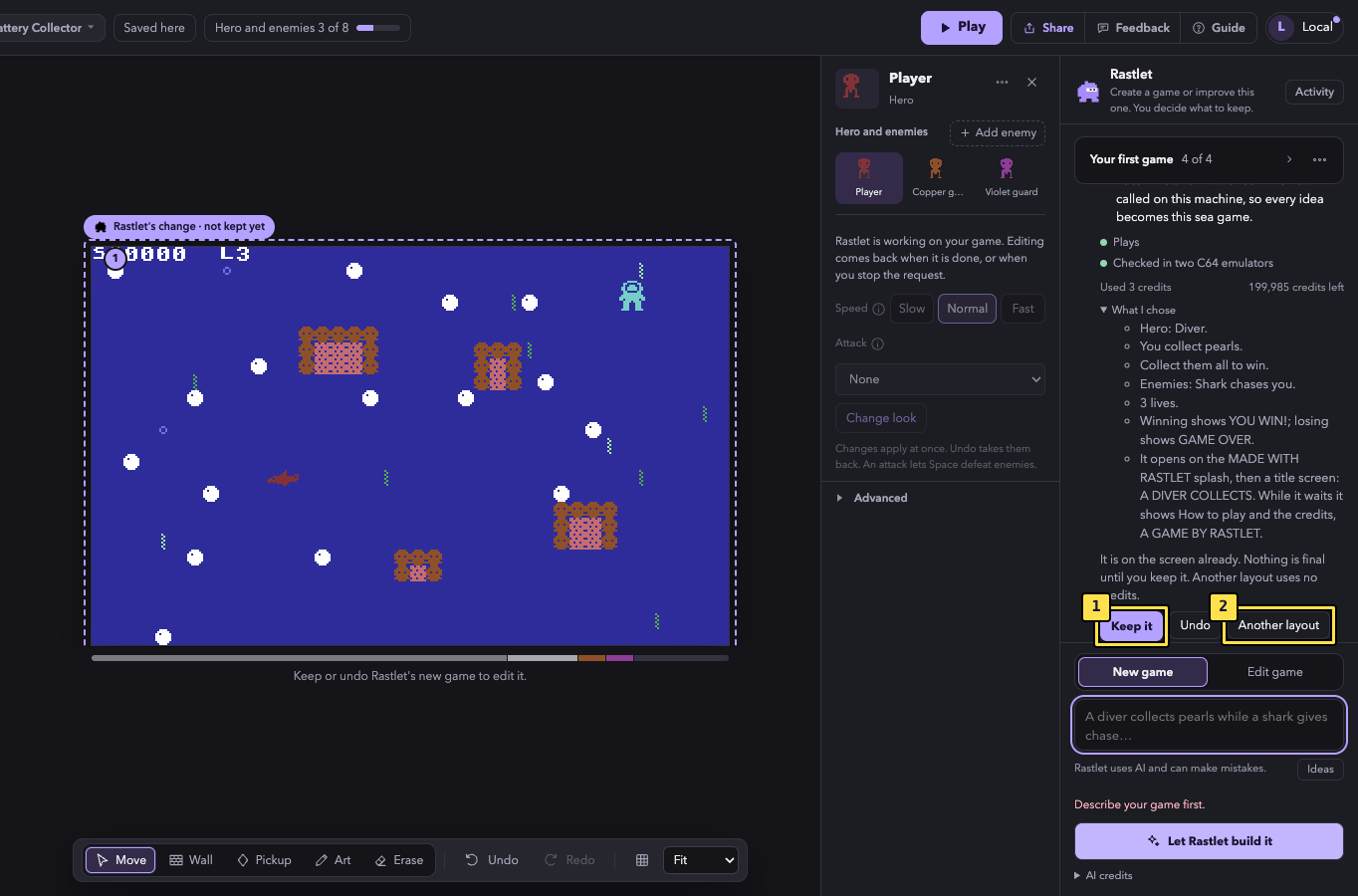
The game appears on the stage, not kept yet. Rastlet lists what it chose: the hero, the goal, the enemies, the lives. Press Play it to try it.
Not the layout you pictured? Another layout 2 rearranges the same game and costs nothing.
-
4
Keep it
Press Keep it 1. Your new game opens in the Studio. The game you had open isn't lost: it stays in My games on Start.
Changed your mind? Undo in Activity, the button at the top of Rastlet's column, takes it back.
-
5
Make it yours
Now tune it: by hand in the Studio, or by asking Rastlet for changes in the same box. The How do I… recipes have both ways for the changes people make most.
Make a scrolling adventure
A scrolling game is one long trail that moves up the screen on its own. You hike to the end, drive off what comes at you and collect treasure on the way. You'll reshape Ranger Trail into your own.
-
1
Pick a trail
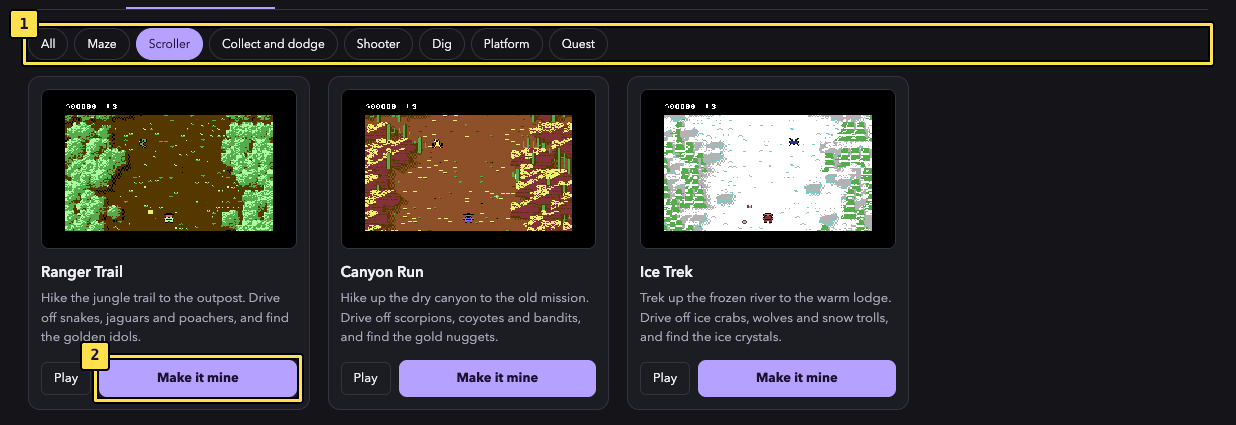
On Start, choose Start from a game, then the Scroller chip 1, and Make it mine 2 under Ranger Trail.
Canyon Run and Ice Trek work the same way, through a desert canyon and up a frozen river.
-
2
See the whole trail
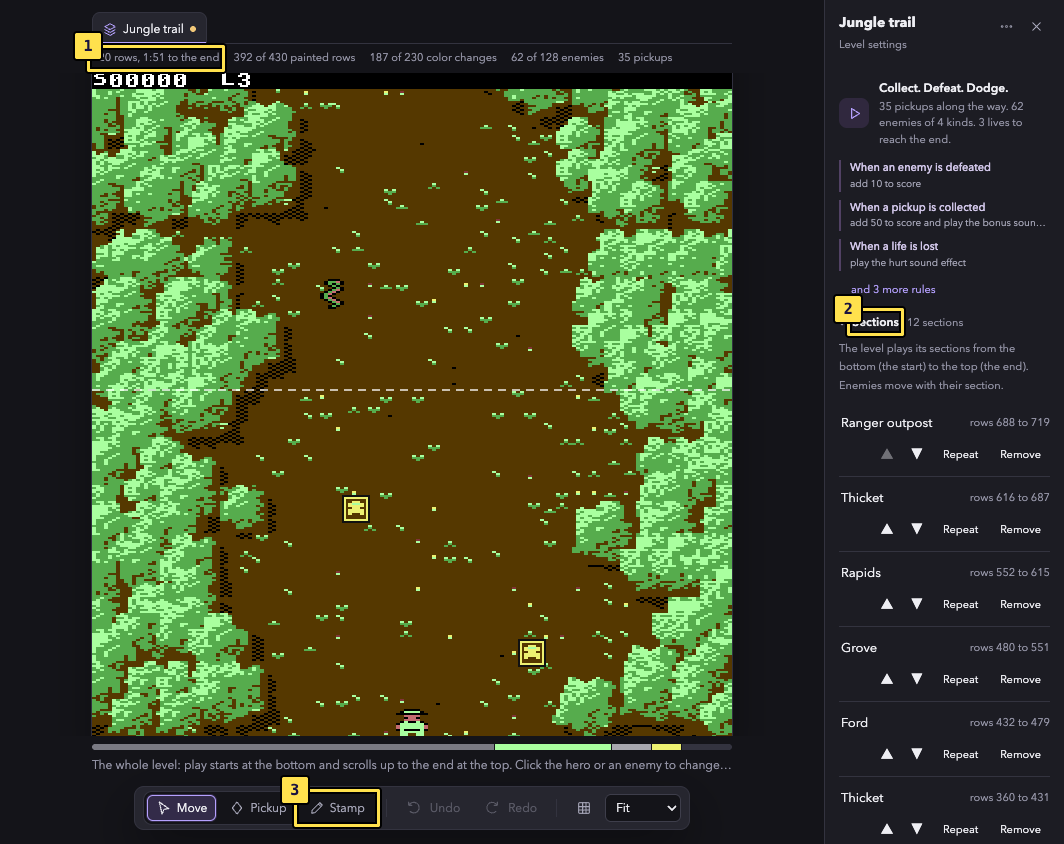
Choose World, then Level settings at the top of the World editor. The stage now shows the whole level: play starts at the bottom and scrolls up to the end at the top. The dashed line marks the top of the first screen.
The line above the stage 1 says how long the trail is and how long it takes to reach the end, and counts what's used against the C64's limits. A number turns red when it's over.
-
3
Rearrange the sections
A trail is built from painted sections such as Clearing, Ford and Rapids, listed in the card 2 from the end down to the start.
Use ▲ and ▼ to move a section, Repeat to play it twice, Remove to cut it, or choose one from the list at the bottom and Add. Enemies move with their section.
Spread enemies again respaces them along the new trail: far apart at first, closer together toward the end.
-
4
Stamp the scenery
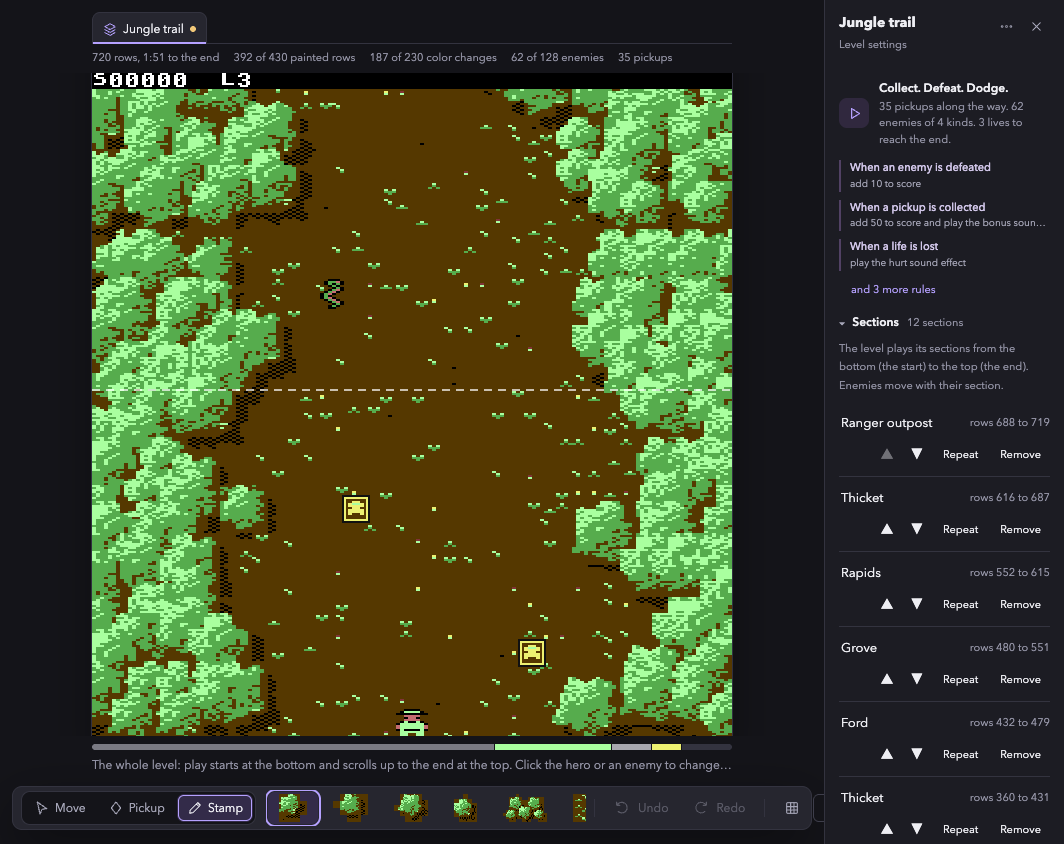
Pick the Stamp tool 3, choose a tree, a river or a bridge from the bar under the stage, and click a section. A preview shows white where it fits, yellow where it would block the way and red where it can't go.
A river needs a bridge, or the hero can't pass. A stamp changes every play of its section.
-
5
Place enemies and treasure
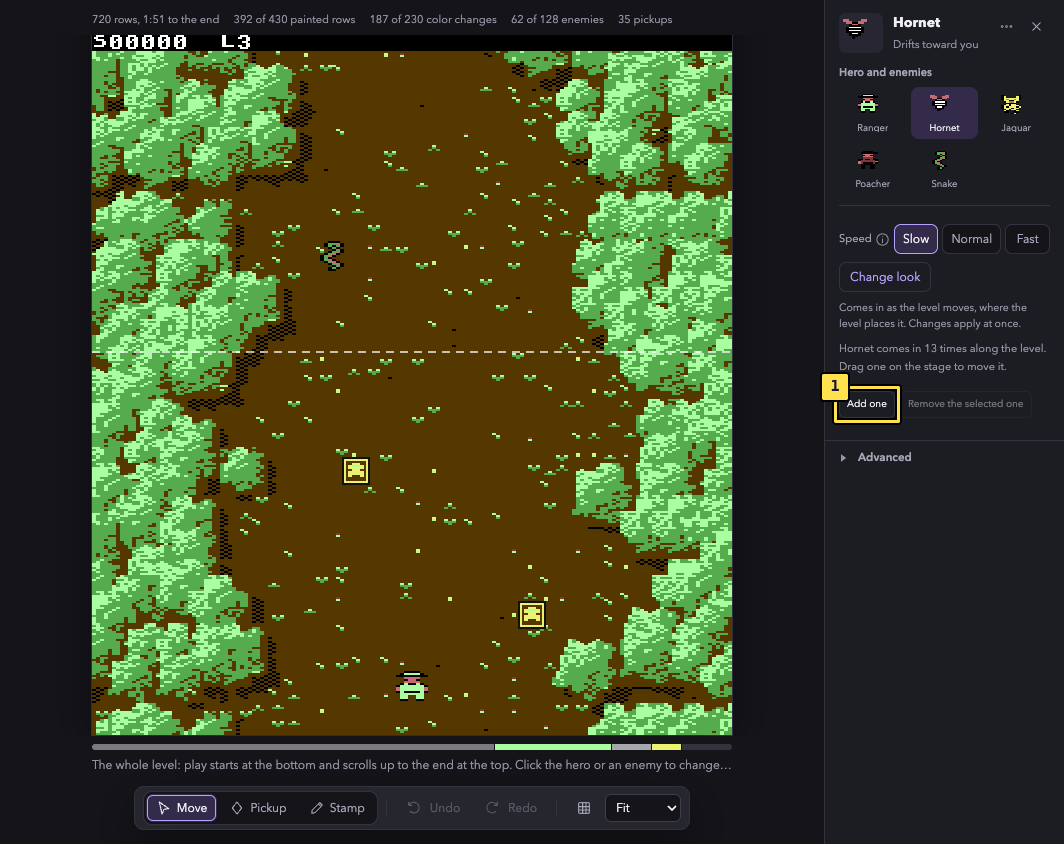
Choose Enemies and pick a kind, such as the Hornet. The card says how many times it comes in. Press Add one 1 for another, then drag it on the stage to where it should appear. Delete removes the selected one.
For treasure, pick the Pickup tool and click open ground to place an idol, or click one to take it away.
-
6
Play it end to end
Press Play. Walk up the trail with the arrow keys and throw with Space. Keep moving: a wall that reaches you pushes you down, and getting pinned at the bottom costs a life. Reach the outpost to win.
Want a brand-new trail? Describe a long journey up a road, a river or a canyon in Describe a game.
Make a platformer
A platformer is one long level that scrolls to the left as you walk right. You jump over pits and spikes, onto ledges and onto enemies, and reach the end to win. You'll make Hilltop Hare your own.
-
1
Pick a platformer
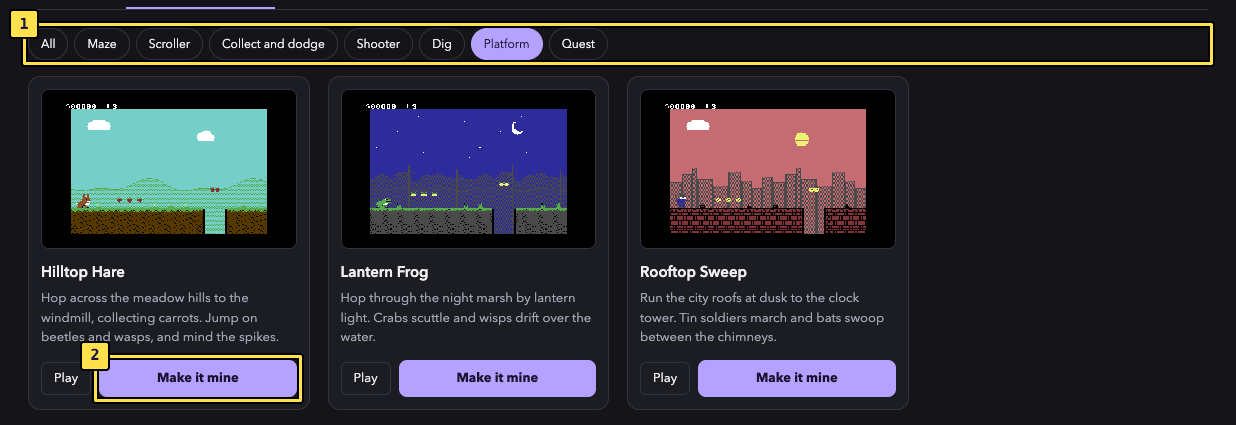
On Start, choose Start from a game, then the Platform chip 1, and Make it mine 2 under Hilltop Hare.
Lantern Frog crosses a night marsh and Rooftop Sweep runs the city roofs. They work the same way.
-
2
See the level and pick a feel
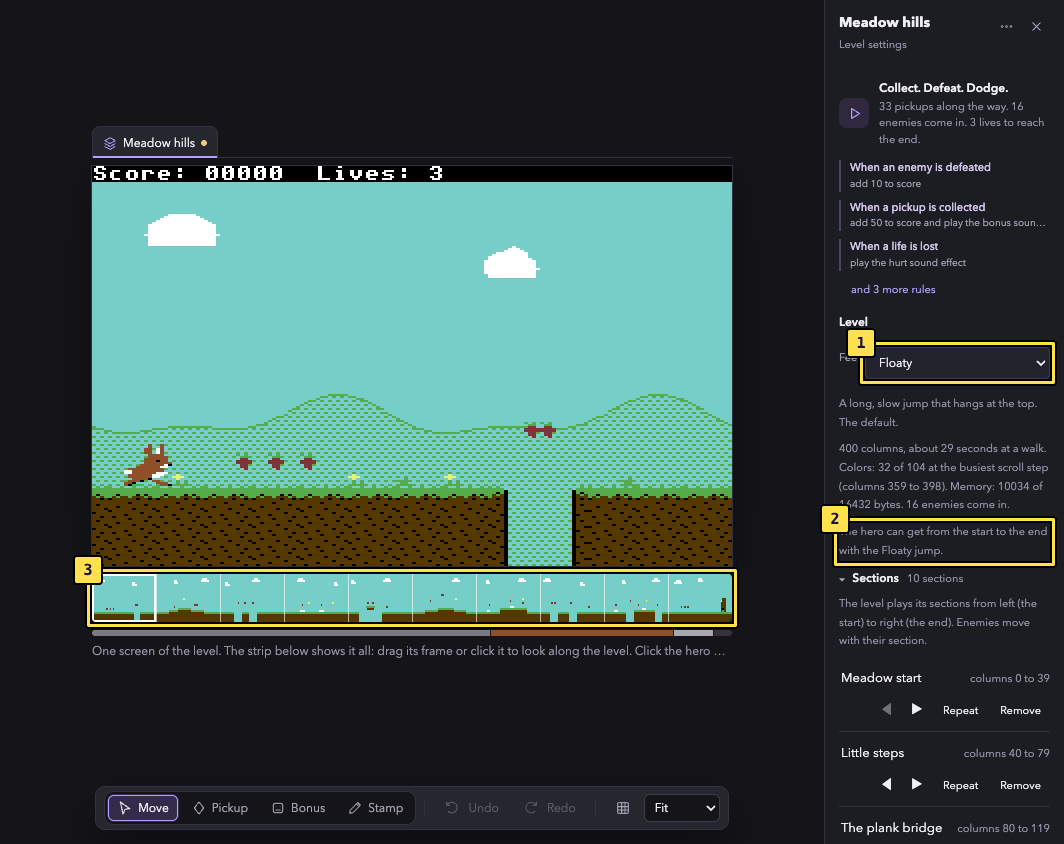
Choose World, then Level settings at the top of the World editor. The stage shows one screen of the level, and the strip under it 3 shows all of it: drag its frame, or click it, to look along the level.
Feel 1 sets how the hero walks and jumps: Floaty hangs at the top of a long jump, Snappy is quick and short, Slow walk is careful. Under it, the jump check 2 says whether the hero can get from the start to the end with that jump.
-
3
Arrange the sections
The level is built from painted sections such as The plank bridge and Wasp hollow, listed in the card from the start to the end. Use ◀ and ▶ to move one, Repeat to play it twice, Remove to cut it, or add one from the list at the bottom. Enemies move with their section.
If the hero can no longer get past a gap, the jump check turns amber and names the column. Show it jumps there on the stage.
-
4
Add pickups, blocks and ledges
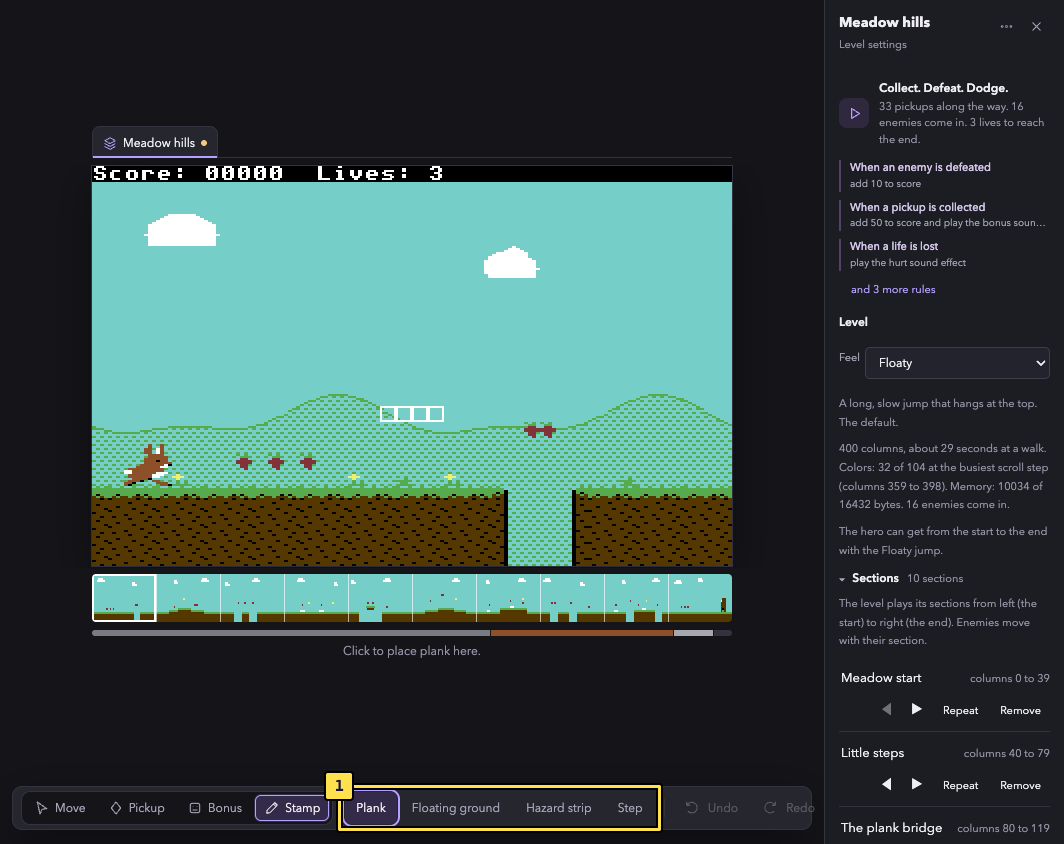
Pick Pickup and click the sky or the ground to place a carrot, or click one to take it away. Bonus places a crate to hit from below. Stamp offers a plank, floating ground, a hazard strip and a step 1: a preview shows where it goes before you click.
Choose Enemies to rename a beetle or a wasp, or switch it between Walks and Flies. Drag one on the stage to move where it comes in.
-
5
Play it end to end
Press Play. Walk with the arrow keys and jump with Up or Space: hold it for a higher jump. Land on an enemy to defeat it. A lost life starts the section again. Reach the windmill to win.
Want a brand-new platformer? Describe running and jumping across a place in Describe a game, and Rastlet builds a level from a meadow, a marsh or the rooftops.
Draw your own world
The World editor is a full-screen drawing tool for your game's levels. What you draw stays a draft until you apply it, so try anything: nothing changes in your game until you say so.
-
1
Open the World editor
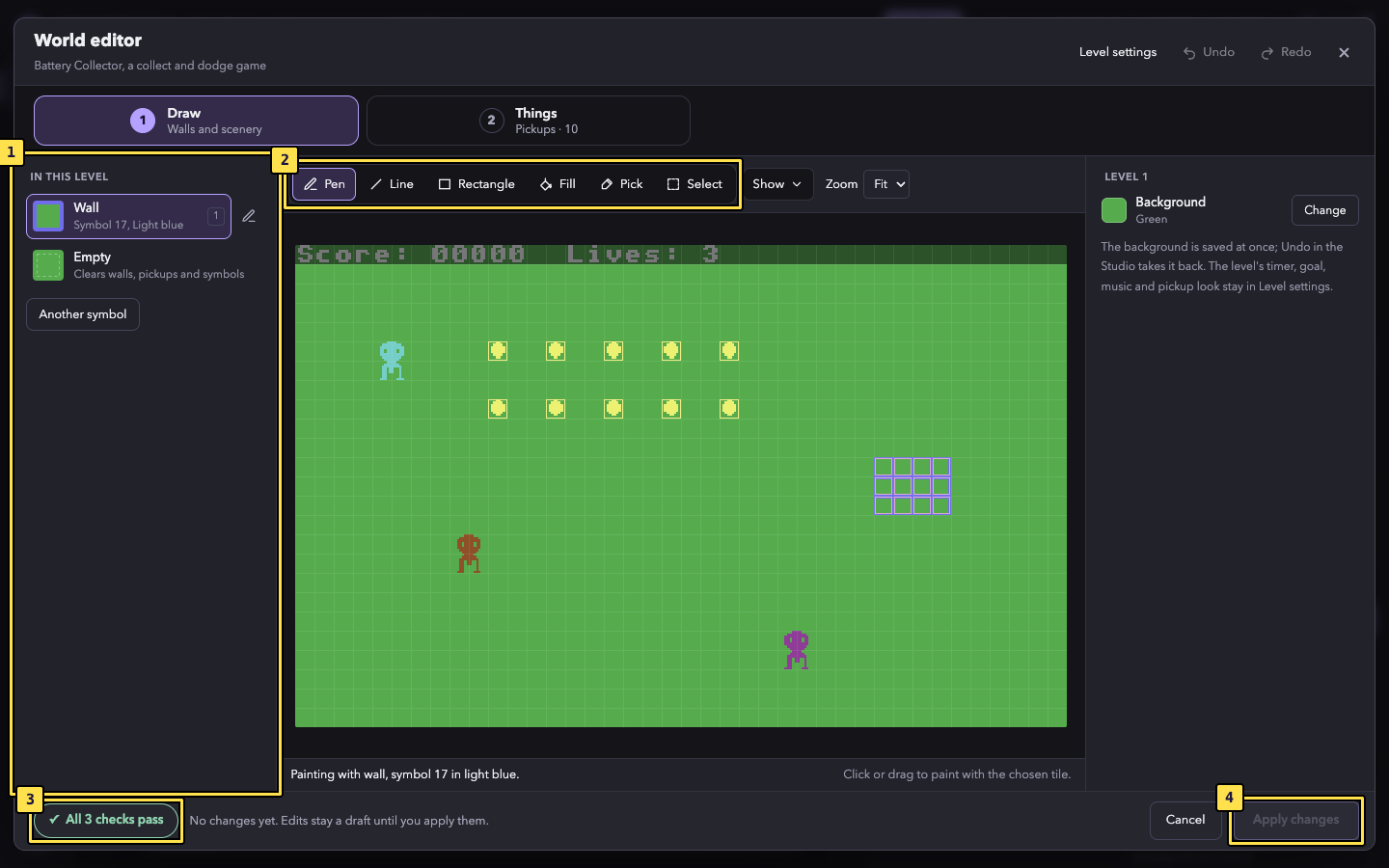
Choose World. It does one job at a time: Draw for the level's tiles and symbols, Things for pickups and what your kind of game adds. On the left 1 is what the job paints with: the level's own tiles. The pencil beside a tile opens the tile editor, where you draw it, change its color and choose whether it is a wall; Another symbol opens it on every symbol of the game. Above the level are the tools 2. The chip at the bottom 3 says whether the checks pass as you draw, and Apply changes 4 saves it.
Each tool has a key: B Pen, L Line, R Rectangle, F Fill, I Pick and M Select. The numbers 1 to 9 pick what the job paints with.
-
2
Draw
Click a symbol on the sheet, a color under it, and tick Wall if the hero and enemies cannot pass it. Then click or drag on the level with Pen. Rectangle paints a box, filled or as an outline, Fill paints every joined cell that holds the same thing, and Pick takes what a cell holds back to the pen.
Undo and Redo at the top step through the draft. Grid, Walls, Pickups and Zoom change only what you see.
-
3
Copy what you drew, or keep it as a stamp
Choose Select and drag a box. Copy, Cut, the two flips and Erase work on it, and Paste puts it anywhere, in any level. Save as stamp keeps it under Your stamps for this game on this device, ready to place again.
-
4
Fix what the checks find
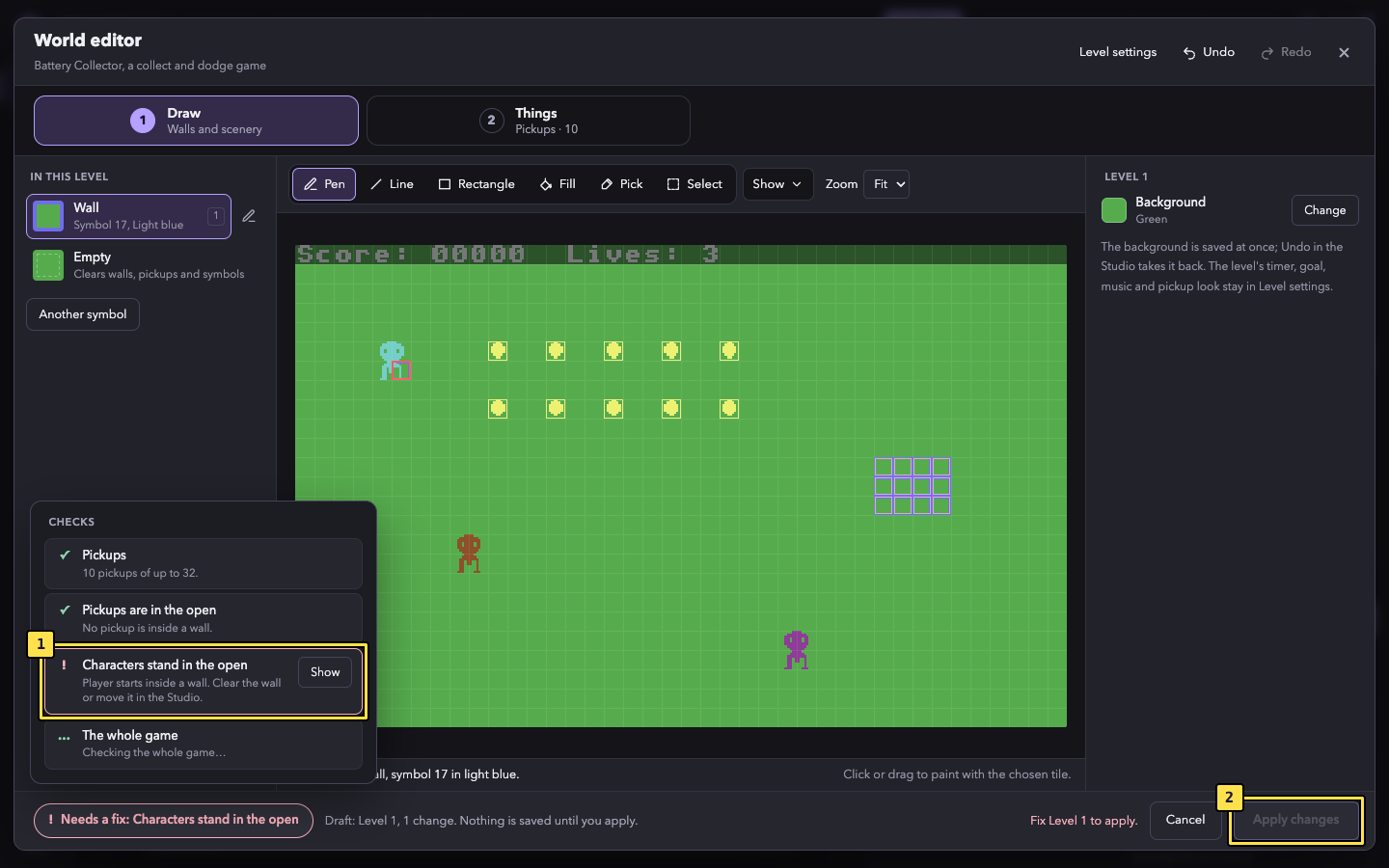
The checks are the rules your game must keep to run on a C64, such as no hero starting inside a wall. A check that fails turns the chip at the bottom red and names it; click the chip to see every check 1 and how to fix it, and Show marks the cells at fault. Apply changes 2 waits until every check passes.
Cancel asks before it throws the draft away. Keep editing takes you back to it.
-
5
Apply it and play
The line at the bottom counts the changes in each level. Apply changes saves all of them as one step, so one Undo in the Studio takes the whole drawing back. Press Play to try it.
The timer, the goal, the music and adding a level are in Level settings at the top of the editor.
-
6
In a cave game
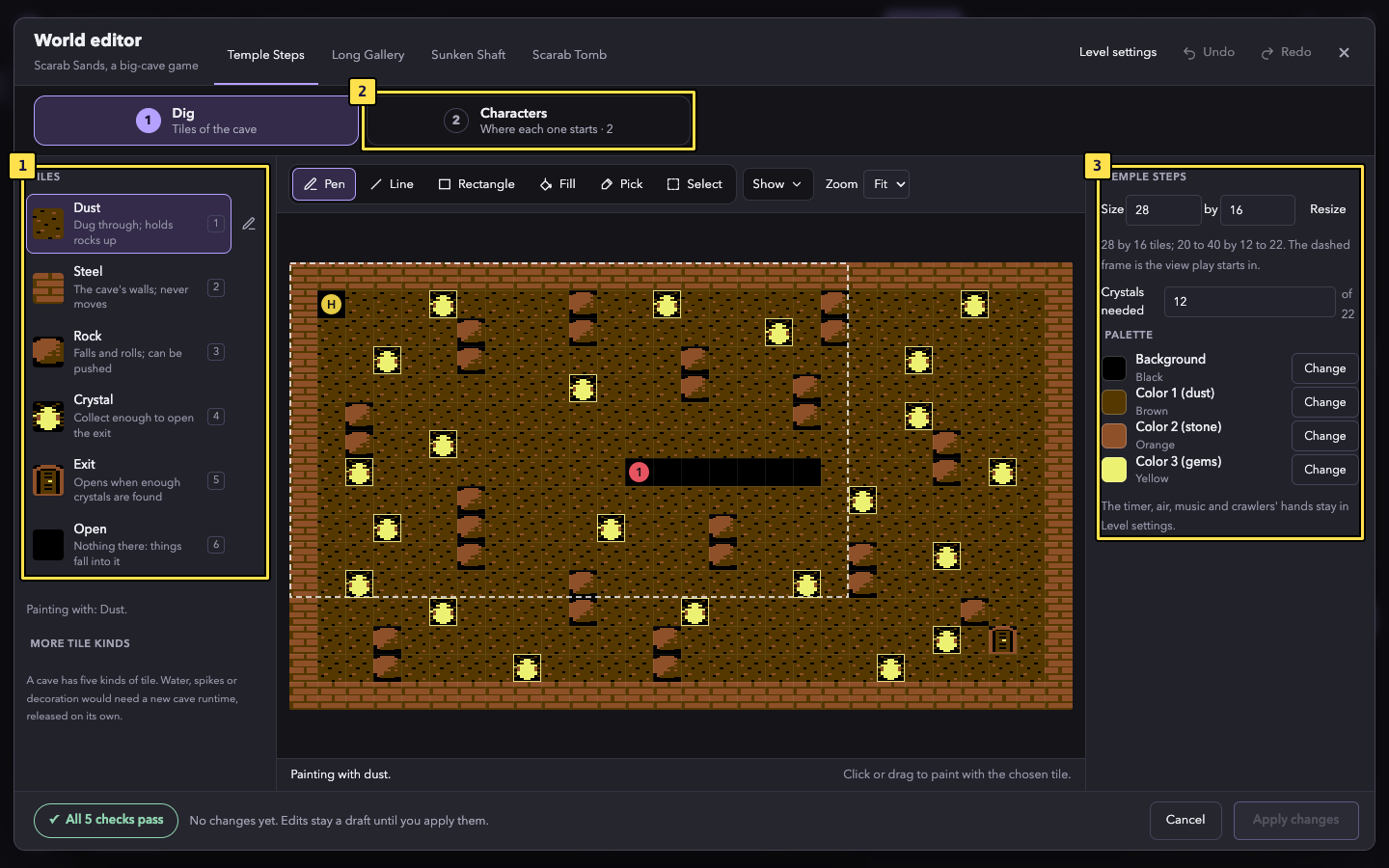
A cave is drawn in tiles 1: dust, steel, rock, crystal, the exit, and open space. The edge stays steel, and painting the exit somewhere else moves it. The Characters job 2 places them: pick the hero or a crawler and click a tile, and it starts there. On the right 3 are the cave's size, the crystals needed and its colors. In a big cave, the dashed frame is the view play starts in.
The checks catch a rock that would fall at the start, and crystals or an exit the hero cannot dig to. Edit the dust look (or any tile's) redraws it for the whole game.
-
7
In a scrolling game
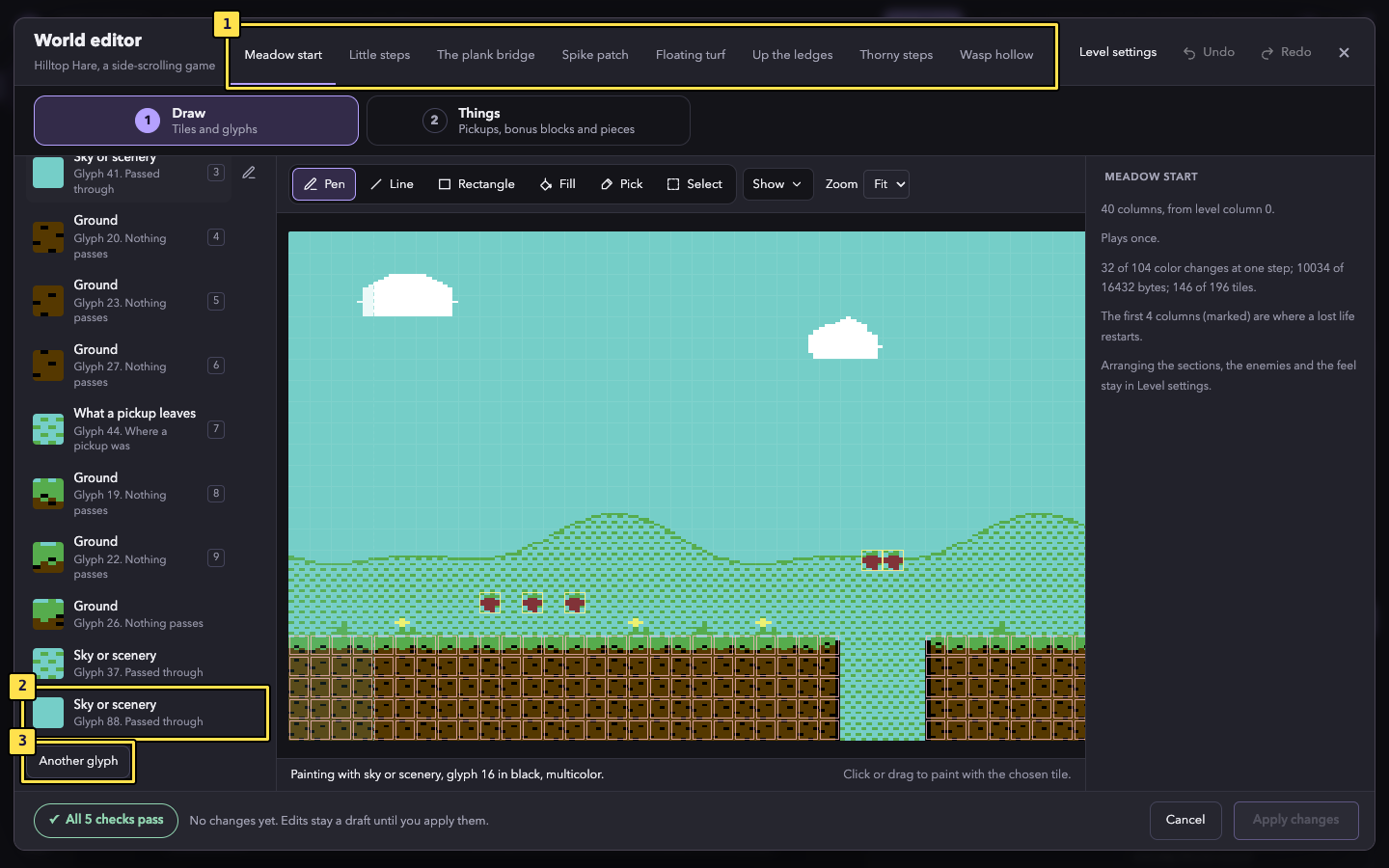
Each section of the level is a tab 1, and a change shows in every play of that section. The level's own tiles are on the left. The pencil beside one 2, or Another glyph 3 for any glyph of the game, opens the tile editor, where you draw it and set its color and class. A glyph's class and color are shared everywhere it shows. In a platformer, the Things job places pickups, bonus blocks and the setting's plank, ground, hazard strip and step.
Arranging the sections, the enemies and how the hero jumps stay in Level settings. A platformer's jump check runs as you draw.
-
8
Describe a world instead of drawing it
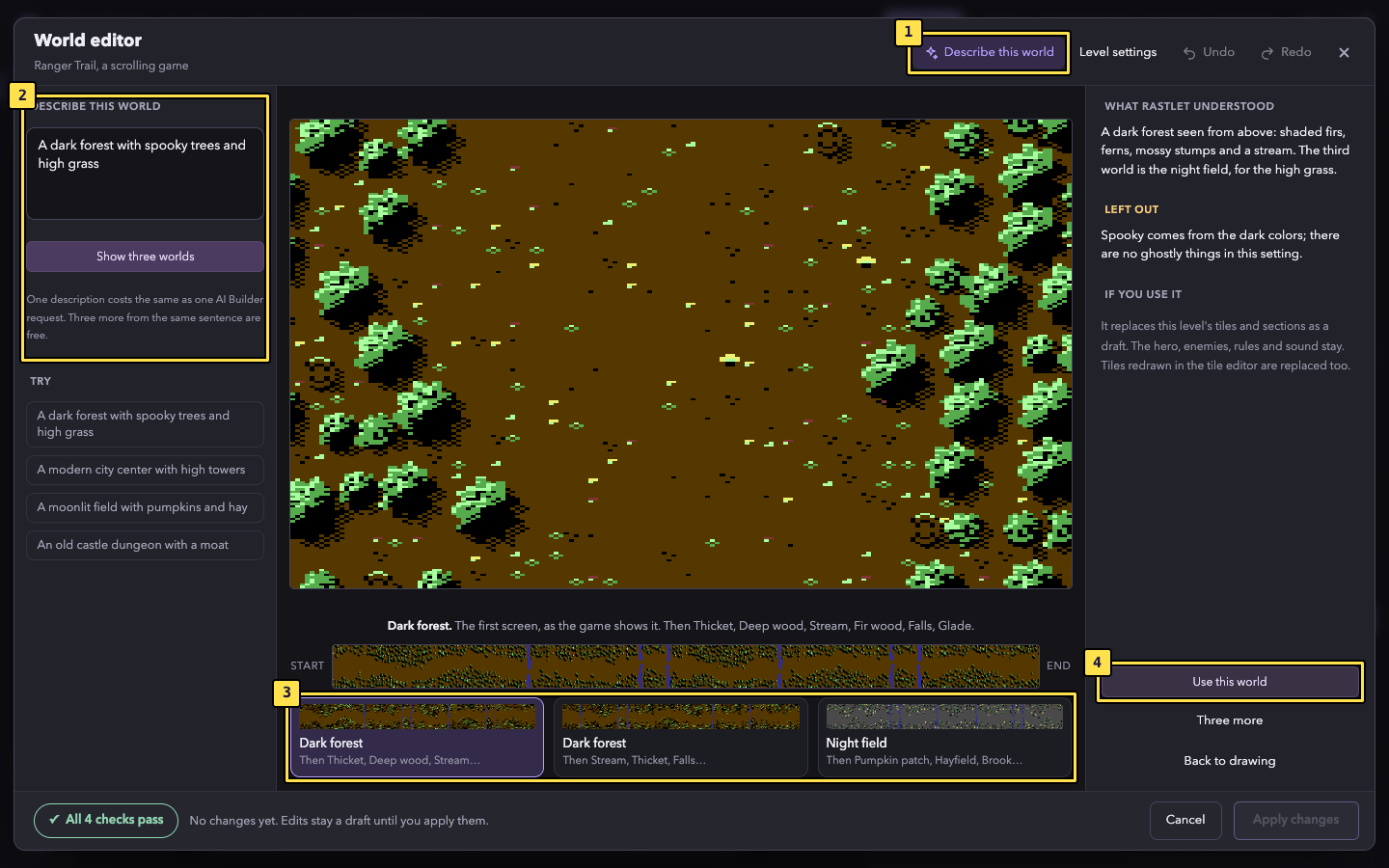
In a game that scrolls upward or sideways, choose Describe this world 1. Say what the world should be, such as a dark forest with spooky trees and high grass, or pick an example, and choose Show three worlds 2. Rastlet reads your words and draws three worlds from its painted settings 3. Words such as dense, open, winding, lots of water or high grass change how a setting is painted, so each of the three is drawn anew. The large picture is the first screen; the strip under it is the whole level, from start to end, so you can see where the water and the woods fall.
Use this world 4 makes it your draft. Draw on it like any level: Undo brings your old world back, and Apply changes saves it. The hero, the enemies, the rules and the sound stay as they are.
A description costs the same credits as one AI Builder request, and Three more from the same words is free. Rastlet says what it left out: high towers, for example, need a side view, and a game that scrolls upward is seen from above. In a side-scrolling game the city is the clockwork rooftops, chimneys and all.
In a cave game, the same button lays out the open level's cave three ways from your words: tight tunnels or open caverns, few or many steel walls, rocks and crystals, and colors such as icy blue or lava red. Your characters start in new places, and the timer and rules stay.
Make a quest
A quest is a game of rooms. The hero walks from room to room, looks at things, takes them, uses them and talks to people, and solves a chain of puzzles to win. You'll make Thornwood your own: a forest, a woodcutter, a broken bridge and a castle with a lost crown.
-
1
Pick the quest
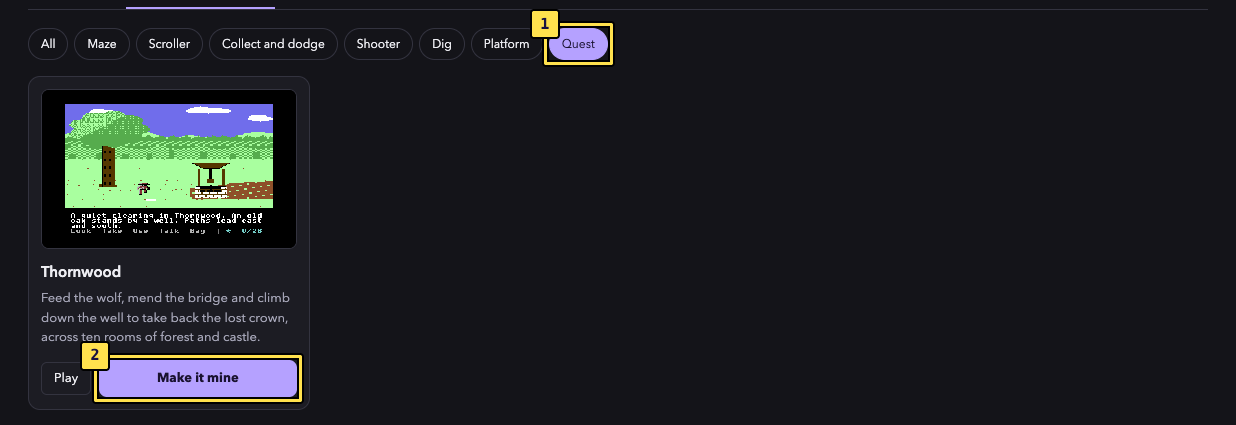
On Start, choose Start from a game, then the Quest chip 1, and Make it mine 2 under Thornwood.
Play it first: press Play and see how far you get. The steps below show how each part of it is made. Want a brand-new quest? Describe an adventure with things to find and puzzles to solve in Describe a game, and Rastlet paints the rooms and writes the story.
-
2
Walk through the rooms
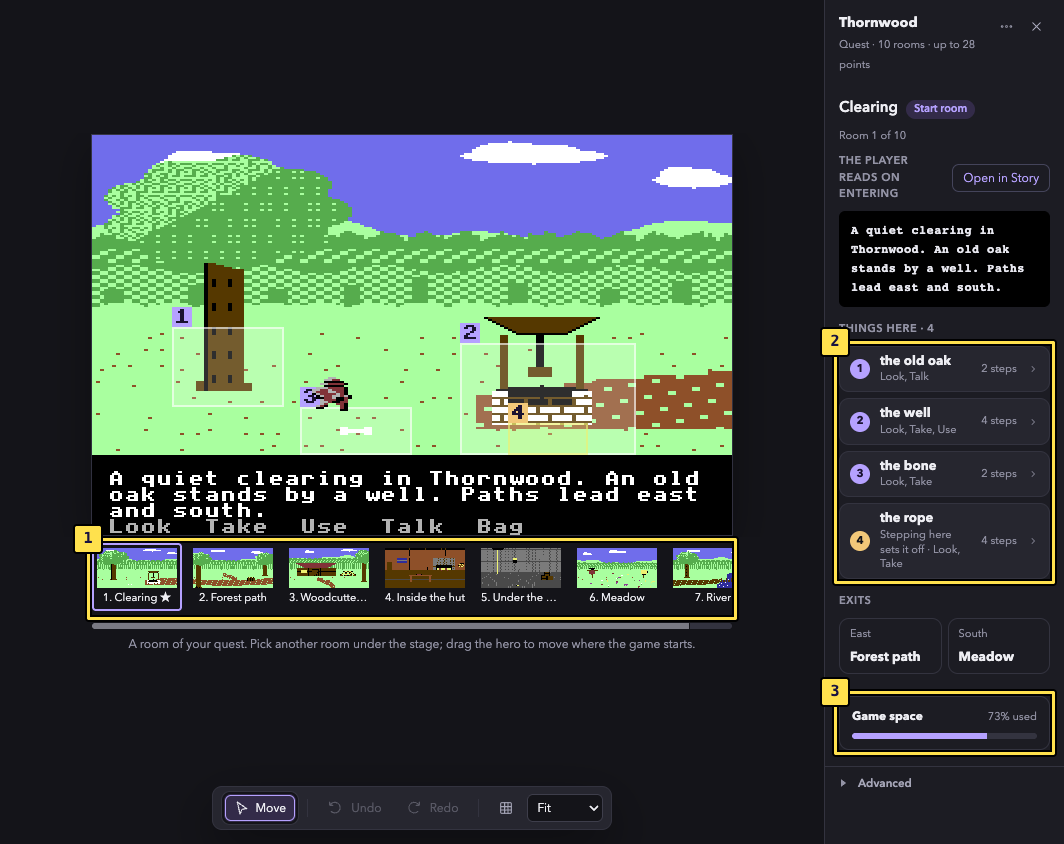
The stage shows one room, with the text window and the verbs under it, as the game draws them. The row of pictures under the stage 1 holds every room: click one, or use the arrow keys, to show it. The star marks the room the game starts in.
The card on the right shows the line the player reads when the hero walks in, and lists the things here 2. Each thing has a number, and the same number sits on its patch of ground on the stage. Click a thing to open what happens with it in Story; click an exit to show the room it leads to. The Game space bar 3 shows how much of the game's space is used, and opens Game health, where every limit of the game is counted. Drag the hero on the stage to move where the game starts.
-
3
Paint a room
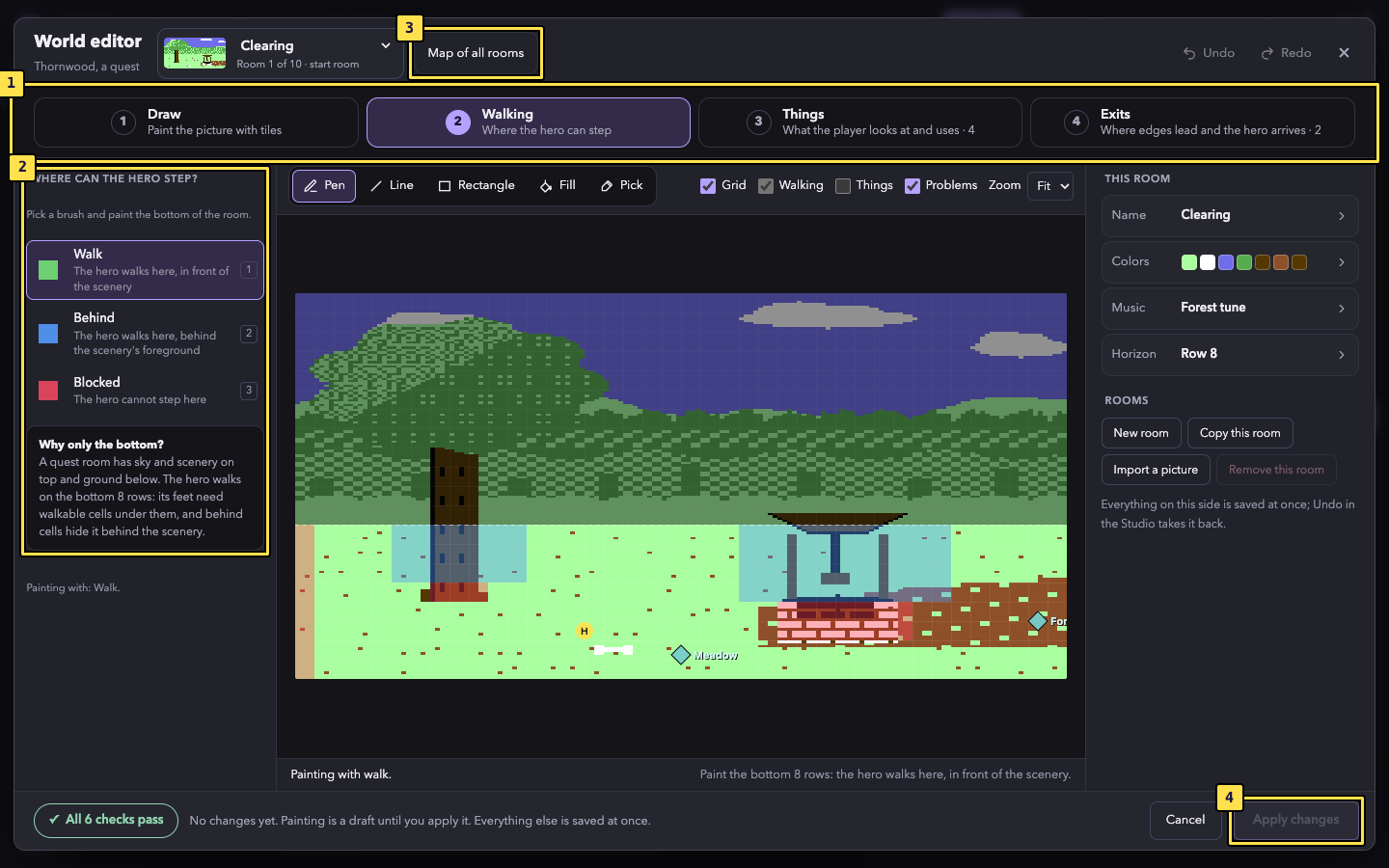
Choose World. The World editor opens on the room you were looking at; the list at the top picks another room. It does one job at a time 1: Draw paints the picture with the room's tiles, Walking paints where the hero can step, Things places what the player looks at and uses, and Exits sets where the edges lead. Each job shows only its own tools.
In Walking, paint the bottom eight rows with Walk, Behind and Blocked 2: the hero walks on Walk, passes behind the scenery on Behind (under the trees, past a fence) and cannot step on Blocked. In Things, each thing in the room has a patch of ground: pick it and drag a rectangle. The hero can use a thing from its patch or one cell around it. Add a thing to look at and Add a trigger (ground that does something when stepped on) are under the list.
The room's name, colors, music and horizon are a line each on the right; click a line to change it. These are saved the moment you change them. Sound shows the same music for the whole game: a row for every tune with the rooms that start it, and Give some rooms a different tune. Apply changes 4 saves the painting. The chip at the bottom left says All checks pass, or names what needs a fix first; click it for the list.
The room's picture is Thornwood's own scenery. Use Pick to take a tile from any cell, or Select to copy a piece of one room and paste it into another.
-
4
Add a room and link it
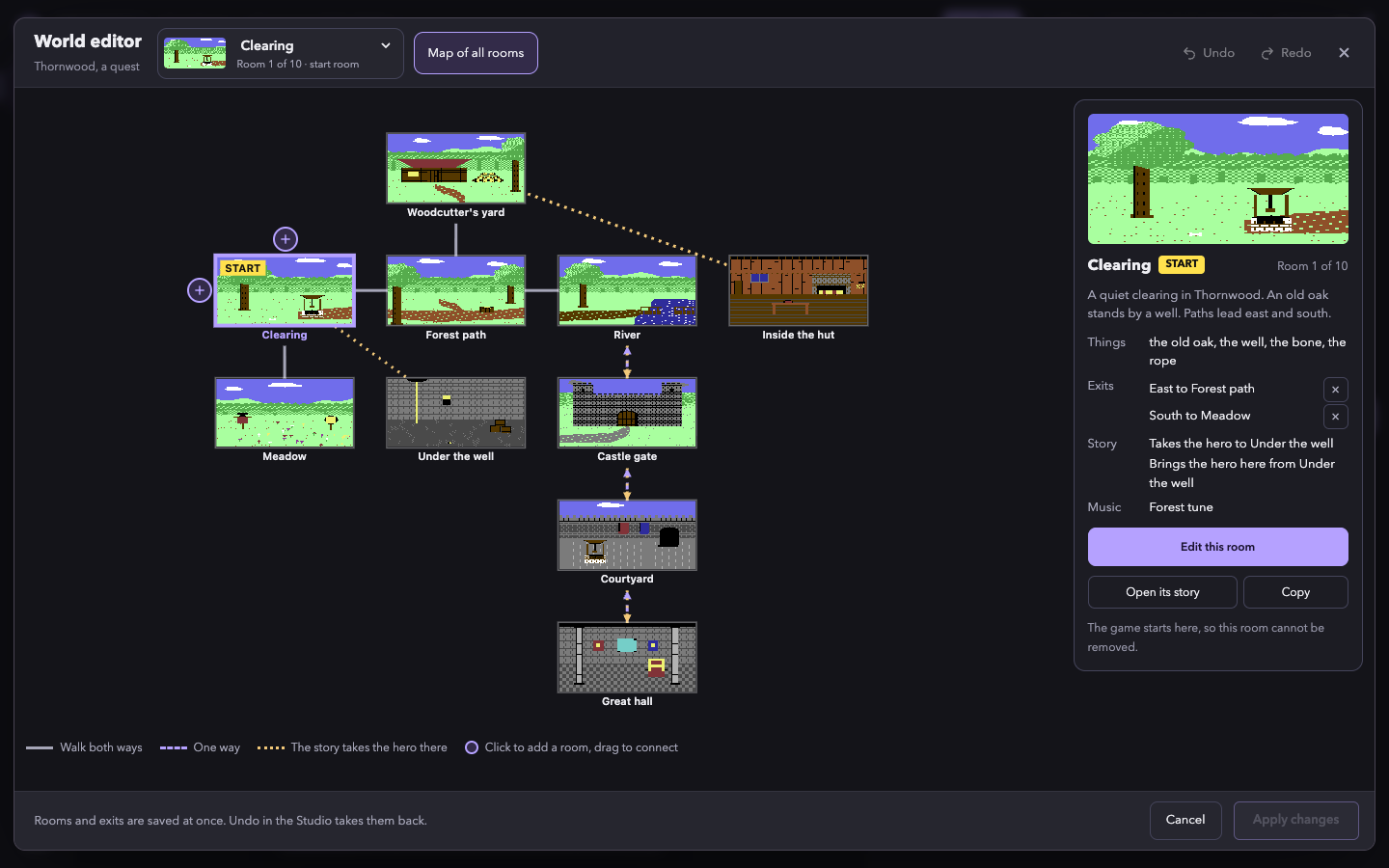
Map of all rooms 3 shows every room and how they connect: a solid line goes both ways, a dashed arrow one way, and a dotted line is a step in the story that takes the hero somewhere. Click a room to select it: the card beside the map shows what the player reads there, its things, exits and music. Edit this room, or a double click, opens it for painting, and Open its story shows its steps.
The selected room has a plus on each free edge. Click one to add a room on that side (up to 16), with the exit set both ways. Drag a plus onto another room to connect the two; the way back is added when that room's facing edge is free. The x beside an exit in the card takes it away, with the way back. Copy, Start the game here and Remove are in the card too.
With a room open, Import a picture on the right draws the room from a picture: a photo, a drawing or a C64 screenshot, in four colors a tile. Zoom and drag to frame it, lower Detail to use fewer tiles, and Keep it. Where the hero walks, the things, exits and story stay, so paint the walk area again if the ground moved. A very detailed picture takes a lot of the game's space, and Rastlet says so before you keep it. In the Exits job you can also pick from a list which room each edge leads to. Where the hero comes in, under it, places where the hero appears from each exit: pick it and click a cell.
Rooms and exits are saved the moment you change them, and Undo in the Studio takes them back. Painting stays a draft until you apply it.
-
5
Write the story
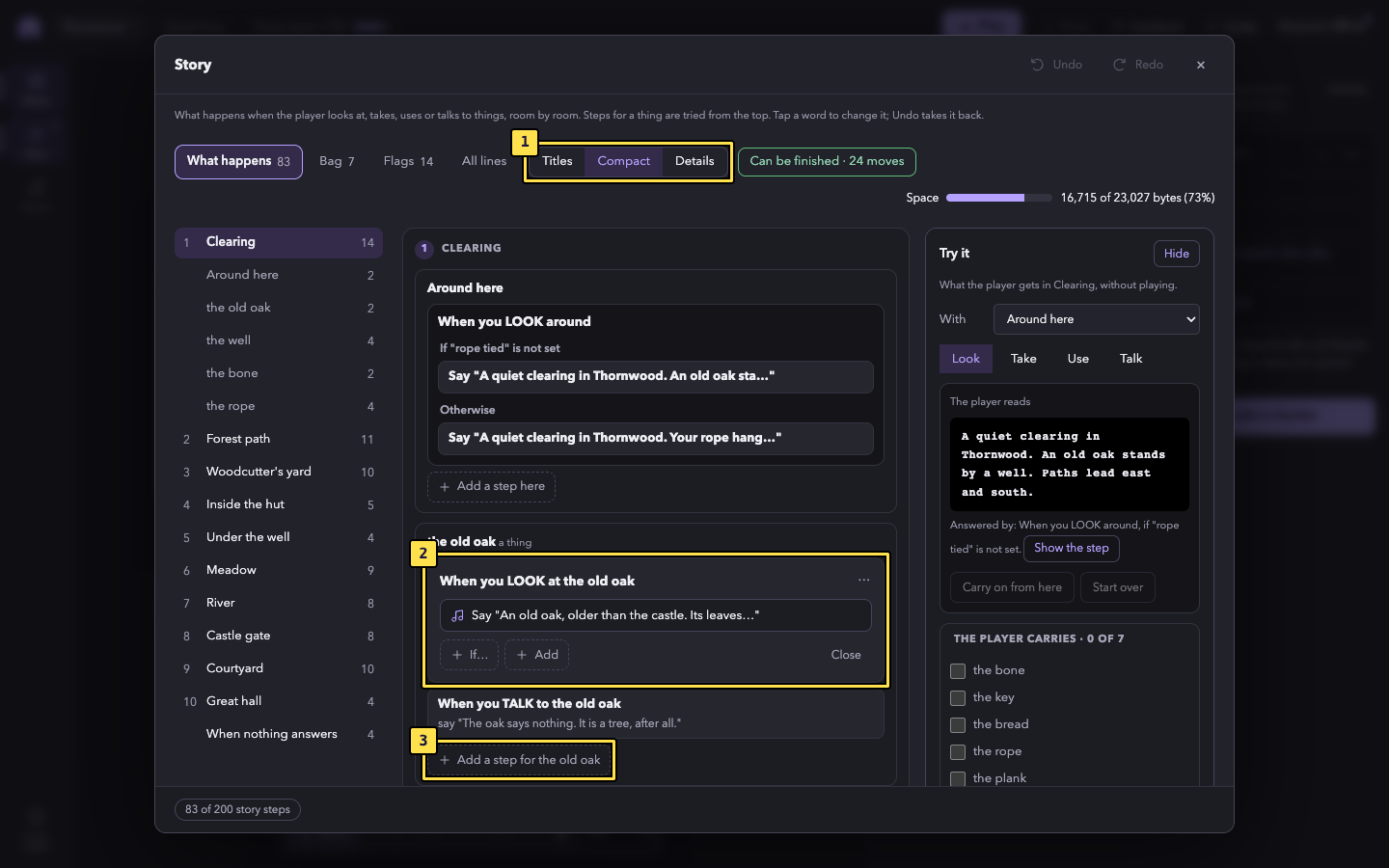
Choose Rules; in a quest it opens the Story on the room you were looking at. The list on the left holds every room; pick one to see its things. Each room lists what happens Around here (what LOOK says on entering) and, for each thing, its steps as sentences: When you USE the rope on the well, if "rope tied" is not set: set "rope tied", take away the rope, score 2. Titles, Compact and Details 1 show more or less of each step.
Click a step to open it 2, then click any word to change it: the verb, the item USE needs, a condition (If…), or what happens (Add): say a line, set or clear a flag, give or take away an item, add to the score, send the hero to a room, win or lose. Add a step 3 adds one for that thing.
A thing's steps are tried from the top, and the first whose conditions hold answers. Put the step with a condition above the plain one, as the well does: "Deep and dark" until the rope is tied, then "Your rope hangs down". The Story marks the second with Otherwise, and says Never reached on a step that sits under one that always answers.
-
6
Fill the bag
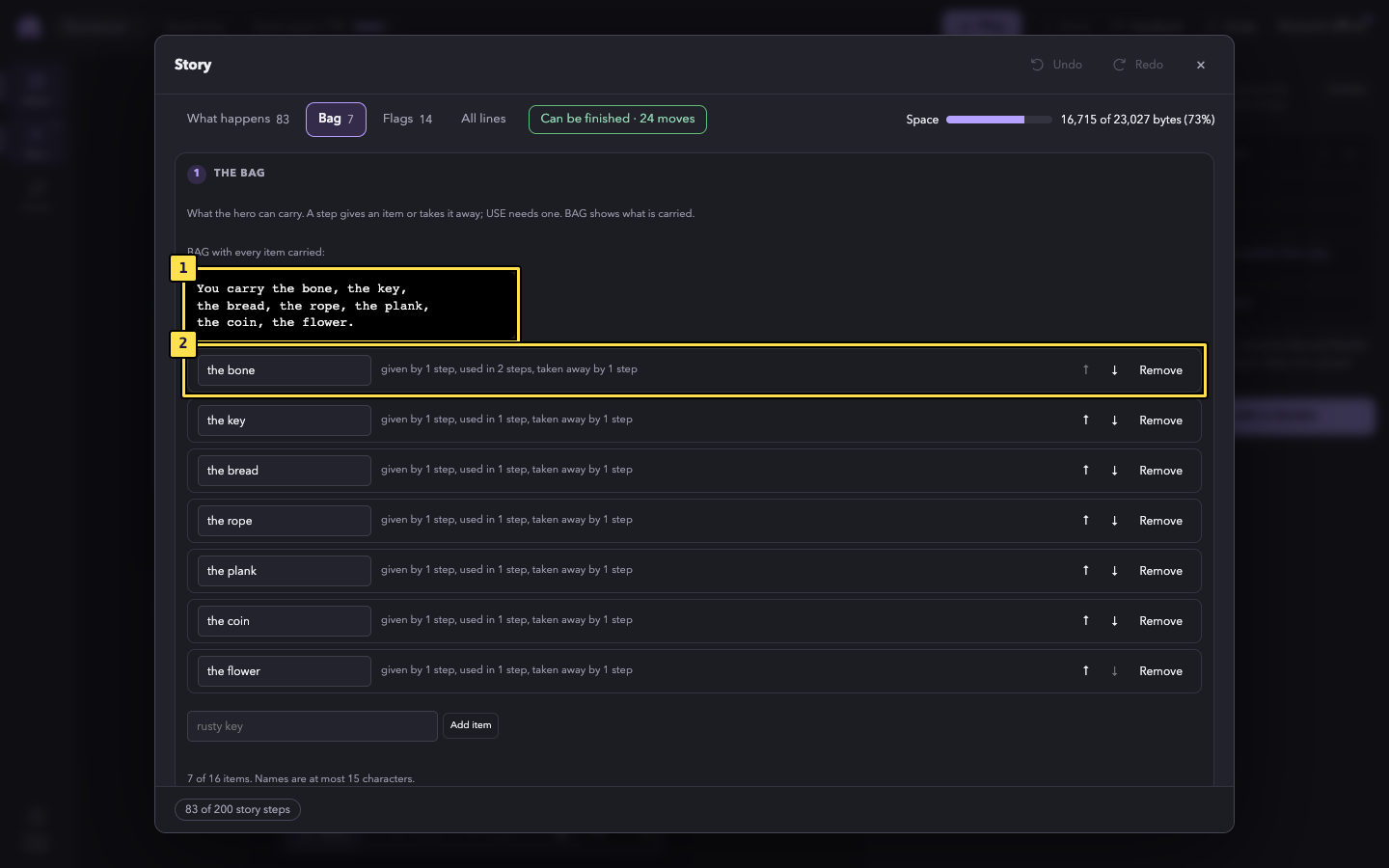
The tabs at the top of the Story show one part at a time: What happens, Bag, Flags and All lines. The bag lists what the hero can carry and shows what BAG says with all of it carried 1. Rename an item in its box 2, move it with the arrows, or add one by name. Each says which steps give it, use it and take it away.
Flags remember what happened, such as "door open". Renaming one changes it everywhere, and a note says when nothing sets a flag or nothing checks it. All lines lists every line the game shows, once, with where it is said; changing a line there changes it everywhere.
A locked door in three steps: TAKE the key gives the key. USE the key on the door sets "door open". The door's step When you step on the door, if "door open" is set: go to the Courtyard lets the hero through; a second step without the condition says "It is locked."
-
7
Ask: can it be finished?
When a thing has several steps for the same moment, they sit in one block under its heading, labelled If and Otherwise: the game tries them from the top and the first that fits answers.
Try it, beside a room's steps, answers one move without playing: choose a thing and Look, Take, Use or Talk, tick what the player carries and which flags are set, and read the exact line the game shows, what else happens and which step answered. Carry on from here keeps what that step changed, so you can walk through a puzzle a move at a time.
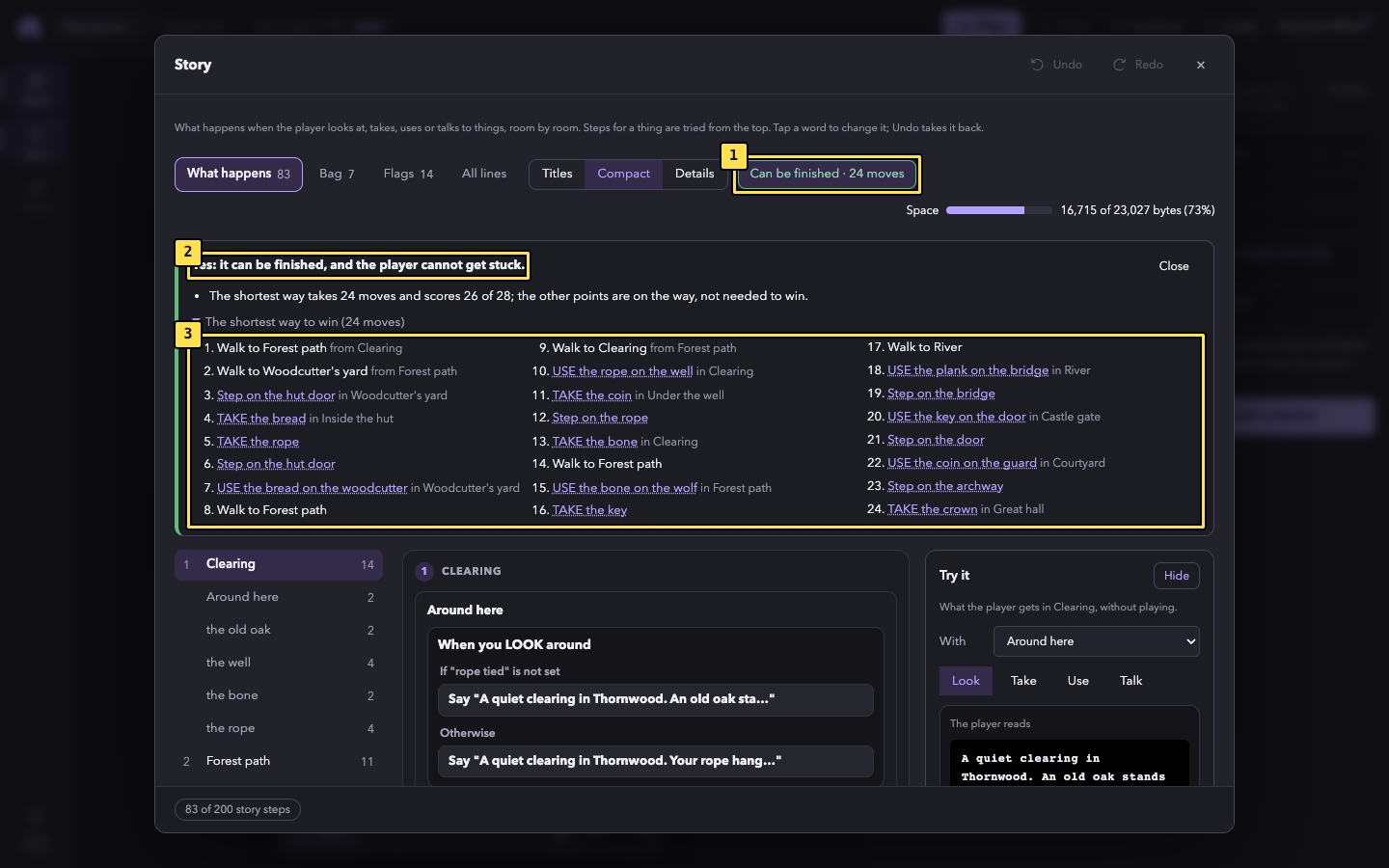
The Story checks itself: the button at the top 1 says Can be finished, The player can get stuck or Cannot be finished after every change. Press it for the reasons. Rastlet tries every way through your story and answers 2: yes, yes but the player can get stuck, or no. It shows the shortest way to win 3; click a move to see that thing's steps.
When the player can get stuck, it lists the moves that lead there, such as using up an item before it is needed. When the game cannot be won, it names what never happens: an item no step gives, a flag nothing sets, a room the hero can never reach. The answer updates after every change while it is open.
-
8
Play it to the end
Press Play. Walk with the arrow keys. Walk up to something and press Space: the verbs light up and the line names what is in reach, as in Look at the well. Left and Right pick LOOK, TAKE, USE, TALK or BAG, Space does it, and Up closes the verbs. USE asks which item from the bag. With nothing in reach, LOOK describes the room.
The star and the number at the end of the verb line are the score. Losing puts the hero back at the start of the room it last walked into, as it was then.
Share it with a friend
One link plays your game on any device, a phone too. Your friend needs no account and nothing to install.
-
1
Build the latest version
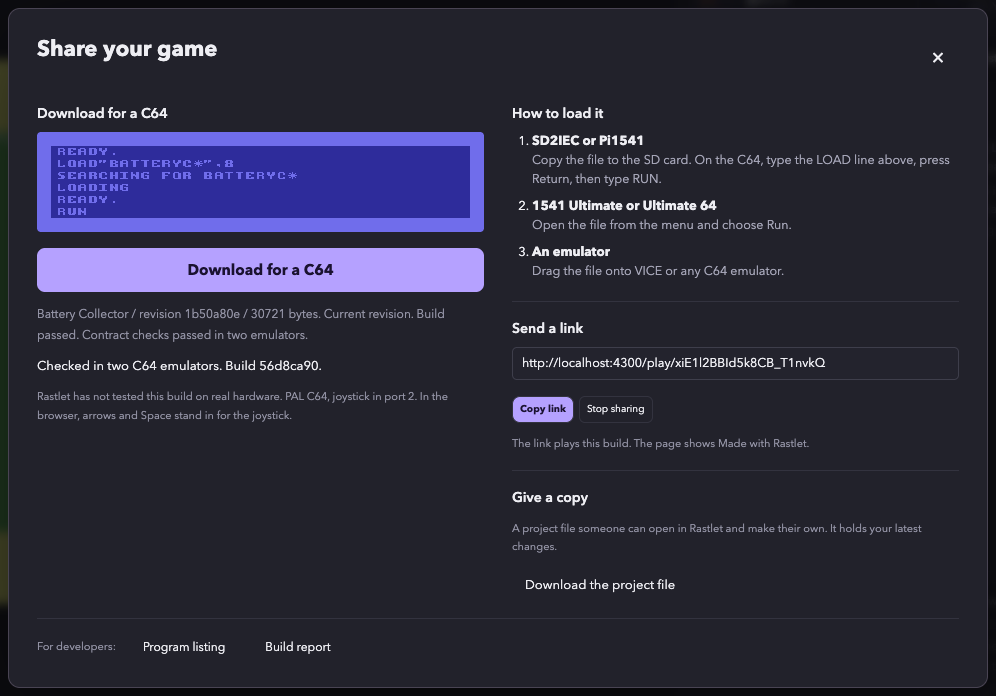
Press Play. A link shares a build that has passed its checks in two C64 emulators, so this makes sure your newest changes are in it.
-
2
Make the link
Press the share button beside Play. Under Send a link, press Make a link, then Copy link and paste it anywhere: a message, a post, an email.
-
3
What your friend sees
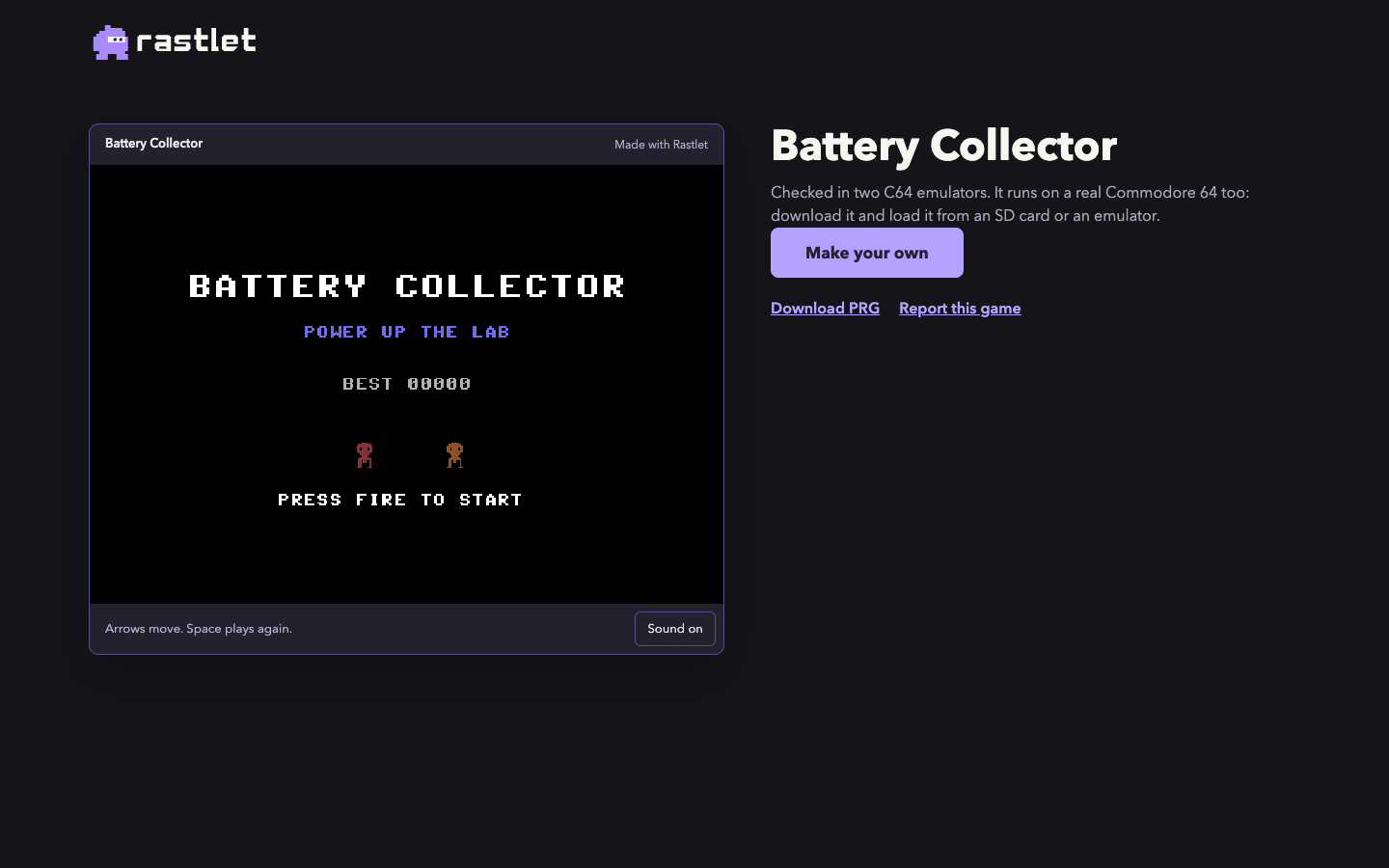
Your game, ready to play with the arrow keys and Space, and a Make your own button if they want to try Rastlet.
-
4
Update it, or stop sharing
The link stays the same for this game. After more changes, press Play, open Share and choose Update to this build: the same link now plays the new version. Stop sharing turns the link off.
Want them to remix it? Give a copy downloads the project file, which they open in Rastlet with Open project file.
Put it on a real C64
Everything Rastlet builds is a genuine C64 program. Download it and load it the way you would any other game.
-
1
Download the program
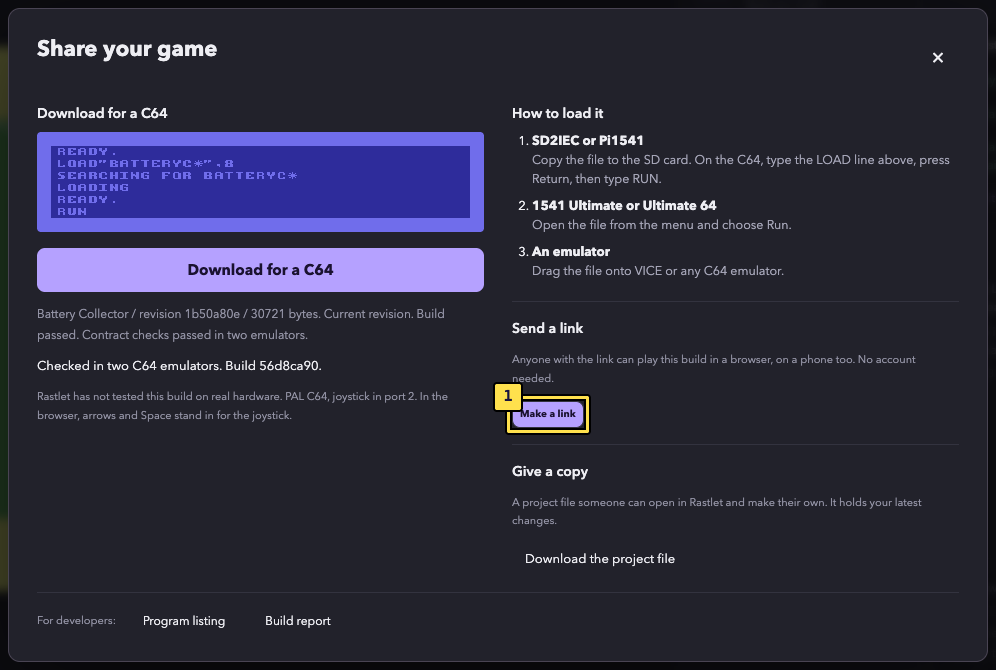
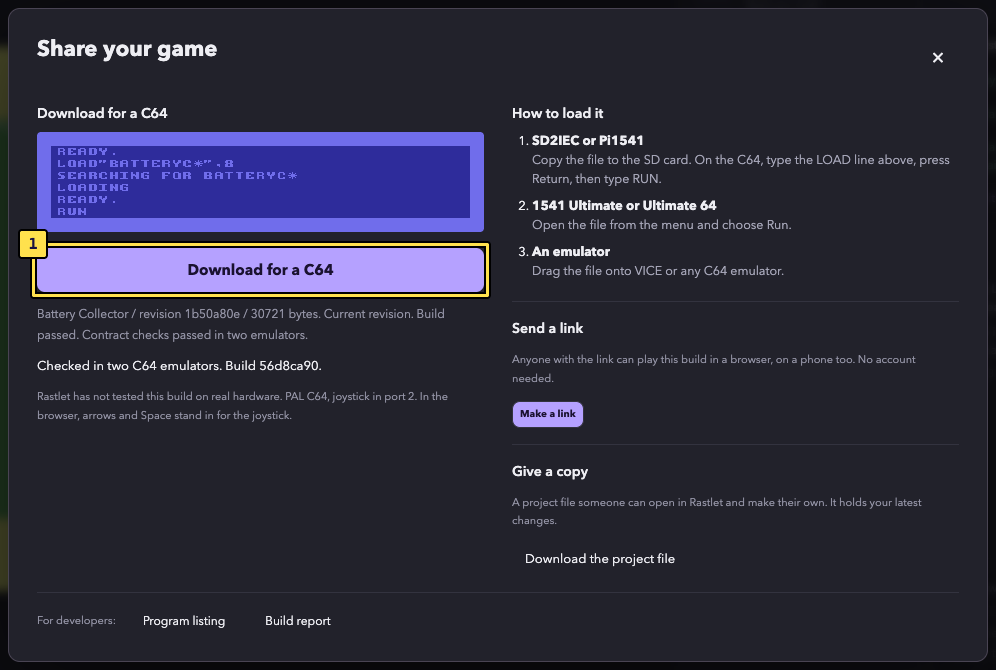
Press Play, then the share button beside it, and Download for a C64 1. You get a
.prgfile, and the screen above the button shows the line to type to load it.During the free trial this button offers Rastlet Builder instead. You can still play and share your games.
-
2
Load it
SD2IEC or Pi1541: copy the file to the SD card. On the C64, type the line shown, such as
LOAD"BATTERYC*",8, press Return, then typeRUN.1541 Ultimate or Ultimate 64: open the file from the menu and choose Run.
An emulator: set VICE to a PAL C64 and drag the file onto it.
-
3
Grab a joystick
Plug the joystick into port 2. Rastlet makes games for the PAL C64.
Every build is checked in two emulators. Real hardware isn't part of Rastlet's own checks yet, so tell us how it runs with Feedback.
How do I...
Short recipes for the things people want most. Every one works two ways: ask Rastlet in a sentence, or do it yourself in the Studio.
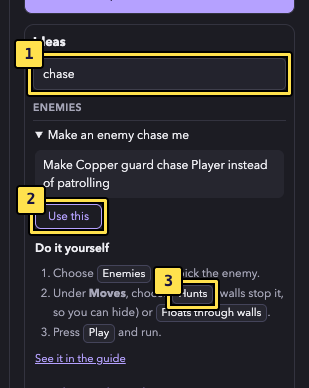
Make an enemy chase me
Paste it into Rastlet's box, press Let Rastlet edit it, look, then Keep it.
- Choose Enemies and pick the enemy.
- Under Moves, choose Hunts (walls stop it, so you can hide) or Floats through walls.
- Press Play and run.
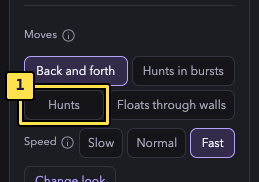
A small ! on a button means the C64 is nearly out of time each frame. Choose it anyway: Rastlet offers to make room.
Make it harder over time
Try "every 30 seconds" or "when the score reaches 100" for other kinds of pressure.
- Choose Rules, then Add a rule and Pressure.
- Tap each word to choose it: when 30 seconds have passed, change the Copper guard's speed to 3.
- Press Play and wait for it.
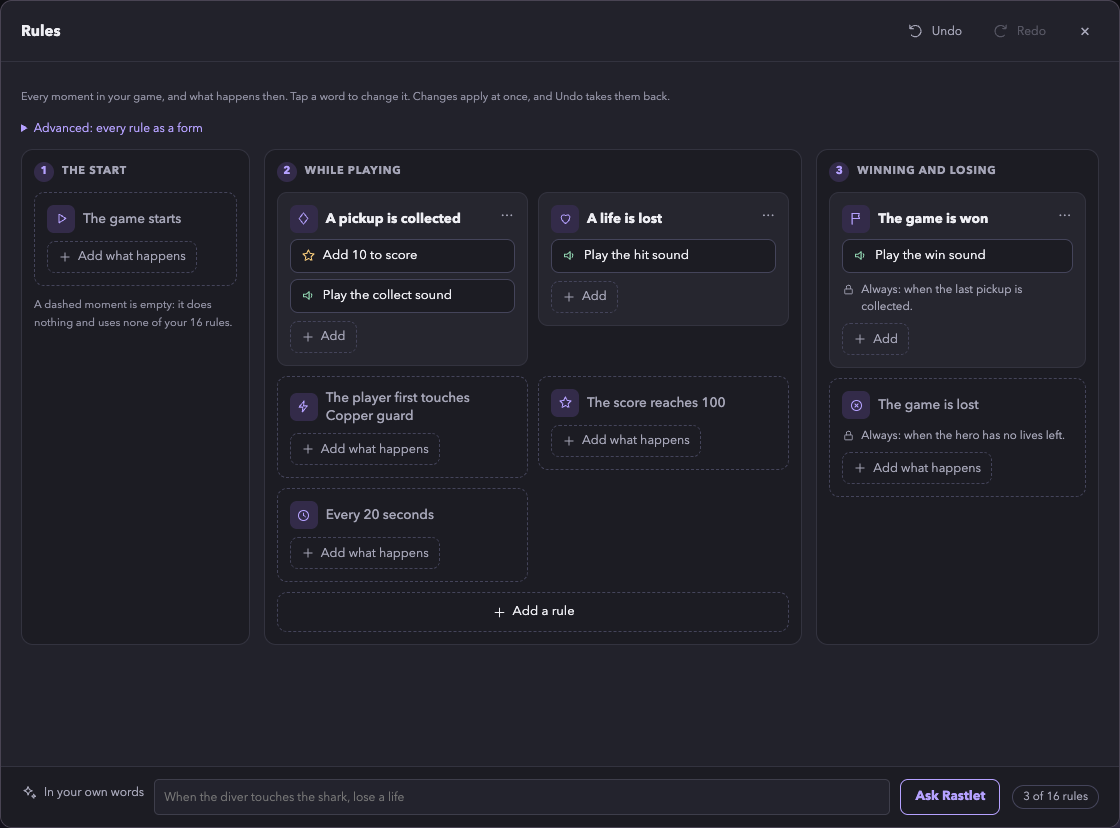
Each card is a moment and what happens then. Tap any word to change only that part.
Add another enemy
Every enemy uses some of the C64's time each frame. The line under the stage says how much room is left.
- Choose Enemies, then Add enemy.
- Drag the new enemy into place on the stage.
- Pick how it Moves and its Speed, then press Play.
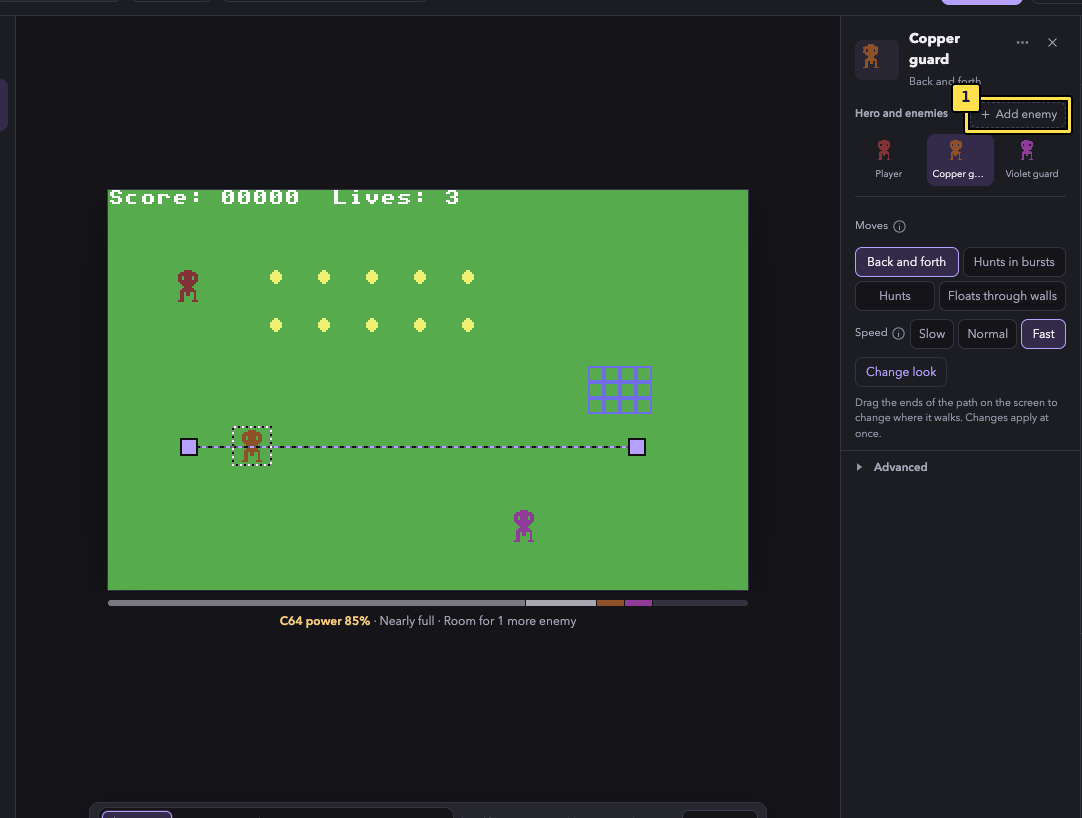
A game has up to seven enemies in each level.
Give my hero a sword
Try a laser, a snowball or a whip: Rastlet picks one that suits your hero if you don't say.
- Choose Hero.
- Open Attack and pick one. The first is the one that suits your hero, marked suggested.
- Press Play and press Space to strike.
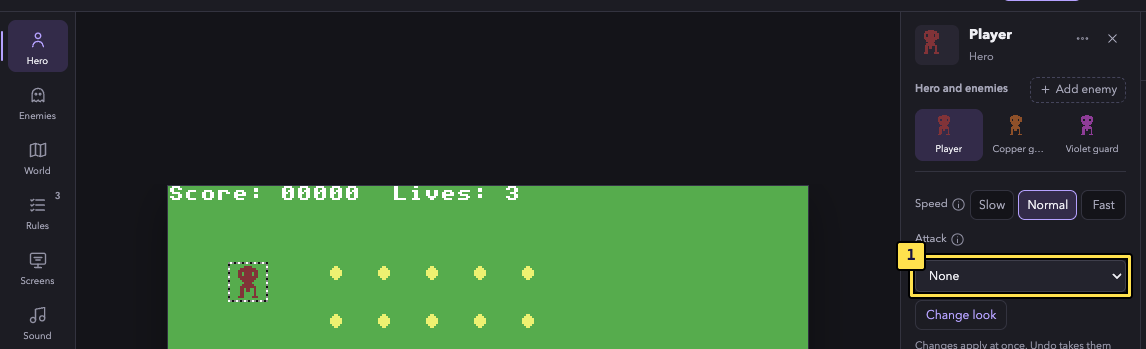
The first attack also adds a rule: 100 points for each enemy defeated. Change it in Rules.
Add a second level
Collecting every pickup moves on to the next level. Score and lives carry over.
- Choose World, then Level settings, then the + beside the level tab.
- Choose Add a level.
- Paint its walls and pickups, place its enemies, then press Play.
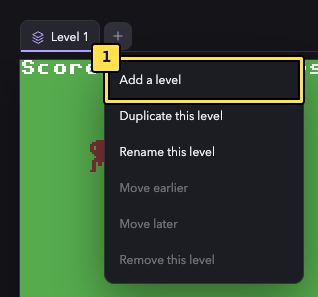
Up to four levels. After a build, Play from this level in a level's settings starts there.
Show a win screen
The second line can show the final score.
- Choose World (in the World editor, Level settings) and open Advanced on the card.
- Under End of game, pick a Message or write your own, then a Frame.
- Press Show on the stage to watch it open the way the C64 does.
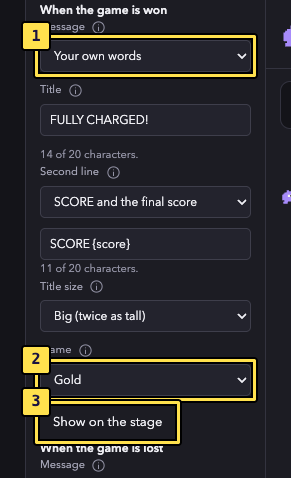
A big title takes more of the C64's symbols. If they run out, Rastlet offers a normal-size title.
Give my game a title screen
An intro before each level, a final screen with the score, How to play and the credits come with the title screen.
- Choose Screens. A new game already has them; otherwise press Add game screens.
- Type the Title and a Tagline, then pick a Look. The preview shows each screen the way the C64 does.
- Under Between games, type your name after A game by. How to play is written from your game.
- Press Play, then From the title to start at the title.
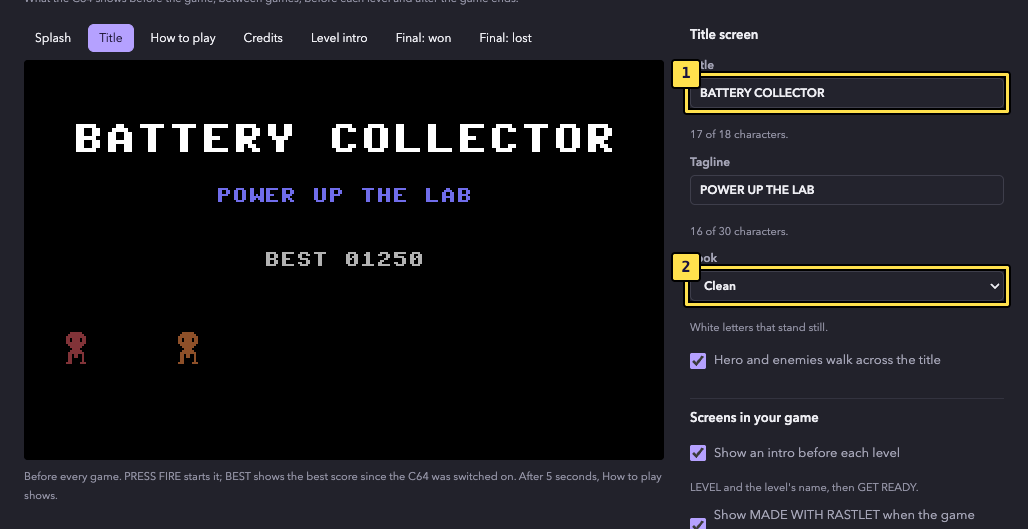
Play in the Studio starts at the level, so testing stays quick. Exported and shared games always open on the title.
Change the music
Describe a mood, not notes: "fast and cheerful", "deep under the sea".
- Choose Sound. Level music is selected.
- Type a mood such as slow and spooky in the search box, or pick a mood like Calm or Dark.
- Press the round button beside a song to hear it, then Use to make it the level music. It is saved at once, and Undo takes it back.
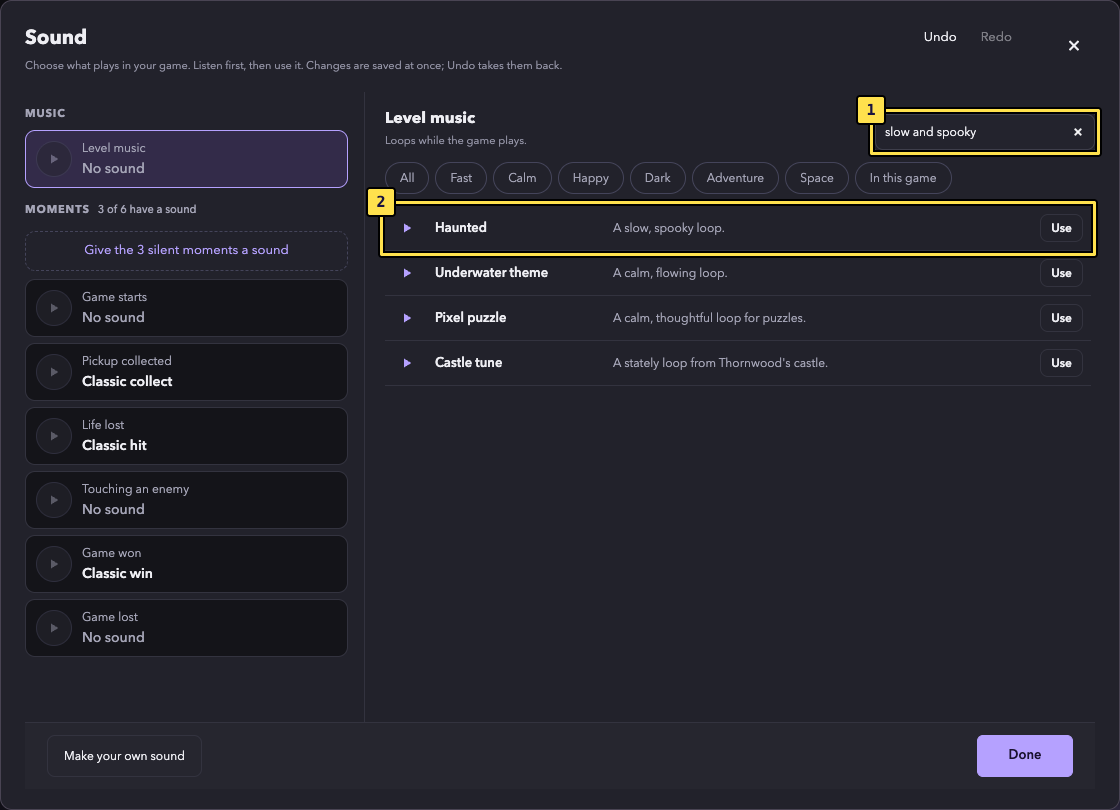
Each moment, like collecting a pickup or losing a life, has its own row: select it, then press **Use** beside a sound.
Change how my hero looks
Works for enemies too: "make the guards look like wolves".
- Select the hero or an enemy and press Change look.
- Search, such as a hungry shark, or pick a theme.
- Click a look, then press Use for (it names your character). Or Draw it yourself to draw your own, pixel by pixel.
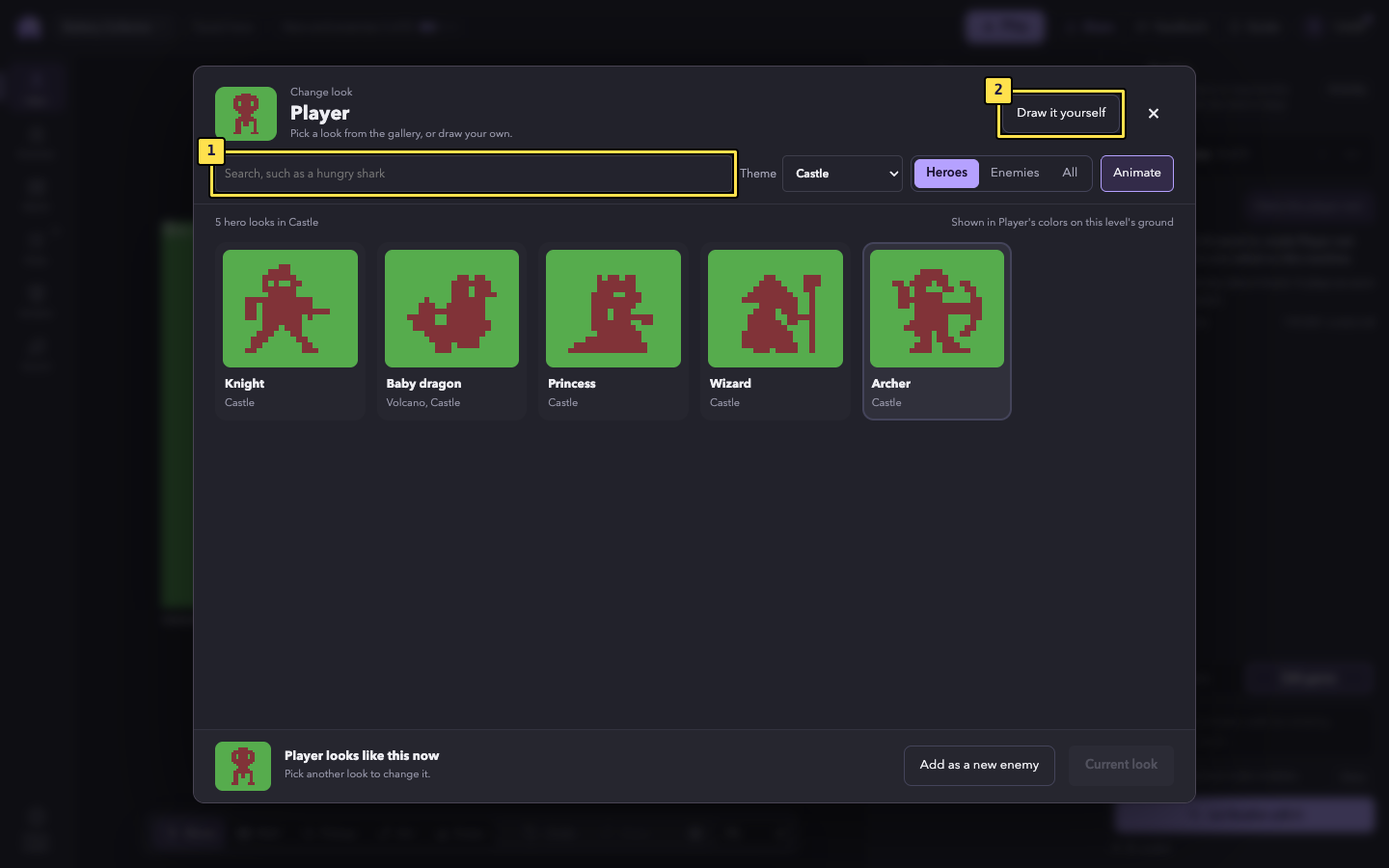
Add as a new enemy adds another enemy with that look.
Add a countdown
When the clock reaches zero the game is lost, unless the last pickup is collected in that moment.
- Choose World (in the World editor, Level settings) and open Advanced on the card.
- Type the seconds in Round timer, from 1 to 999.
- Press Enter, then Play. The time left shows in the score row.
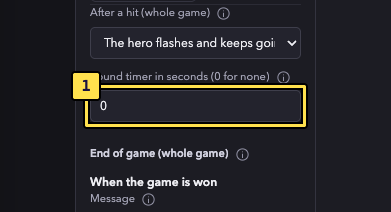
0 means no timer. Scrolling games don't have one: reaching the end is the race.
Paint walls and pickups
Be specific about where: "a wall across the top third with a gap in the middle".
- Pick the Wall tool under the stage and drag across the stage.
- Pick Pickup and click to place the things to collect.
- Erase clears them. Each stroke is one Undo.
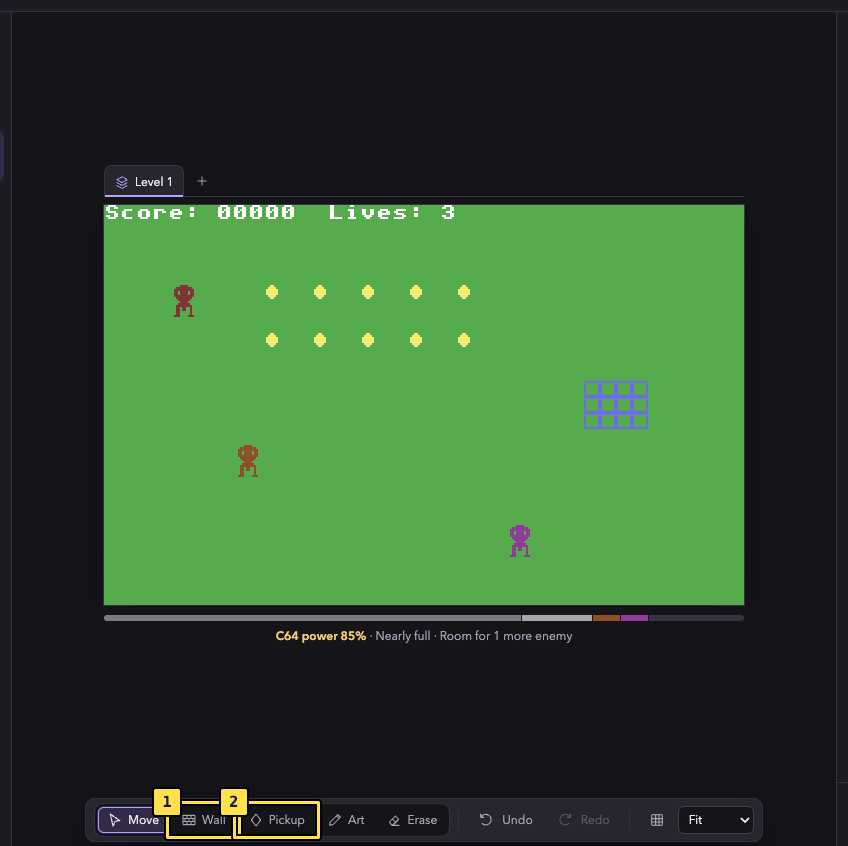
Up to 32 pickups in a level. Collecting the last one wins the level.
Give a bonus life
Or "every 30 seconds, add a life", for a gentler game.
- Choose Rules, then Add a rule and Reward.
- Tap each word: when the score reaches 500, add 1 life.
- Press Play and score 500.
A rule happens once per game for a score, or every time for a pickup.
Turn a picture into a level
- Choose World (in the World editor, Level settings), open Advanced and press Import a picture, or drop a picture on the stage.
- Zoom and drag to choose the part you want. Rastlet matches it to the C64's colors.
- Click the symbols that should be walls, then press Keep it.
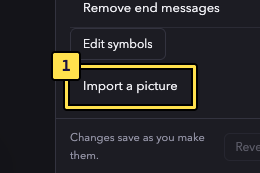
PNG, JPEG, GIF, BMP or a VICE screenshot. This one is by hand: Rastlet can't read pictures from the chat. Mazes, swarms and scrolling levels can't import a picture yet.
Change what a thing says
Rastlet changes the story, not the pictures: a new room or thing is painted in the Studio.
- Choose Story, then Details to see every step.
- Find the thing in its room. Click the words after say and type the new line; the preview shows it as the text window will.
- Press Play, walk up to the thing, press Space and choose LOOK.
A line is at most three rows of 38 letters. Changing it under All lines changes every step that says it.
Give a hint in a quest
If a change would make the quest impossible to win, Rastlet says why and fixes the story.
- Choose Story and find the character in its room.
- Press Add a step, choose TALK, then tap say and type the hint.
- Press Can it be finished? to check the quest can still be won, then Play.
A thing's steps are tried in order and the first that fits answers. Move a step earlier from its menu.
In the Studio
The same recipes are in the Studio, made from your own game, in Ideas under Rastlet's box: type in Search ideas 1 or choose All ideas. Use this 2 puts the sentence in the box, and each control a step names 3 is a button that opens it for you.
Get unstuck
Find what you see, then what to do.
Play turned red and says Needs a fix
Click it. It opens what's wrong, usually too much for the C64 at once, and offers Fix it for me, which makes the smallest change that fits. Undo takes it back.
My change doesn't show when I play
Press Play again. It builds a new program whenever the game changed.
The arrow keys scroll the page instead of moving the hero
Click the game first. Escape gives the keyboard back to the page.
There's no sound
Browsers start silent. Choose Enable sound under the stage while the game plays.
Download for a C64 offers plans instead
During a trial you can make, play and share games and download their project files. Downloading for a C64 comes with Rastlet Builder.
I can't edit: Rastlet's change is on the screen
The stage is locked while you look at a change. Press Keep it or Undo and editing comes back.
My game is missing on another computer
Games are saved in the browser where you made them. On the first computer, click where your game is saved, beside its name, and choose Save to your account now. On the other, open the copy saved in your account.
A button has a small ! and the bar under the stage says Full
The C64 has no time left in each frame for that change. Choose it anyway: Rastlet offers to make room with the smallest change that fits, in the same step, so Undo takes both back.
Something else is wrong, or I have an idea
Choose Feedback at the top of the Studio. A person reads every message, and you can attach the open game.
The manual
Every setting, rule, limit and shortcut, for when you need the details.
Nothing in the manual matches. Try another word, or ask Rastlet in the Studio.
Getting started
The home page
Rastlet opens on a game that is already running. Click the game, or tap it on a phone, and use the arrow keys or the on-screen pad to take the controls; the game starts fresh for you. Space plays again after a game ends. Sound on turns on the music and effects.
Remix this game, under it, opens that game in the Studio as your own copy. Watch the film plays a short film of one idea becoming a real C64 game; nothing loads from YouTube until you press play. How it works shows the Studio at work on Ranger Trail.
Further down, Play it. Then make it yours. shows the starter games: Ranger Trail, Pearl Diver, Space Salvage, Castle Keys, Lamplighter and Frost Line. Play plays one right there. Remix opens it in the Studio as your own copy to change. Battery Collector, the simplest place to start, is in Start from a game in the Studio: it has room for another enemy, a new rule and a different sound without removing anything.
To start from your own idea, type it in What game do you have in mind?, or pick one of the ideas under the box, and choose Let Rastlet build it. When the idea leaves the game open, Rastlet first asks a few quick questions (the clock, lives and the like); otherwise it builds straight away. Rastlet makes one-screen arcade games, mazes, caves to dig, swarms, trails that scroll upward and side-scrolling platformers; if an idea is out of reach, you get the closest game it can make, and Rastlet lists what it left out. Buttons that use AI carry a small sparkle.
When the Studio opens, Rastlet offers to build your idea. Nothing is sent until you press Let Rastlet build it. The new game appears on the screen but replaces your game only when you choose Keep it; Another layout tries a different arrangement of the same game and uses no credits. New game, above the message box, starts again from a new idea.
Playing is free, making needs an account
You can play games on Rastlet without an account. When you choose Let Rastlet build it or Remix, a card asks for a free account first. Your idea, or the game you chose to remix, is kept while you sign in, and it is waiting when the Studio opens.
Your trial and Rastlet Builder
A new account starts with a 14-day trial: 10,000 AI credits, 200 builds and one project, with no card. During the trial you make games, play them, share them with a link and download their project files. Downloading a game for a C64 and its program listing come with Rastlet Builder, the subscription ($30 a month or $300 a year, with 50,000 AI credits and 2,000 builds each billing month and up to 100 projects). Rastlet Pro ($50 a month or $500 a year) is everything in Builder with 200,000 AI credits, 5,000 builds and up to 250 projects. Rastlet Sprite ($10 a month or $100 a year) keeps you making after the trial, with 10,000 AI credits, 300 builds and up to 10 projects a month; your games play and share in the browser with Rastlet branding, and downloads for a C64 and credit packs come with Builder. You can move between the plans from your plan page. Pressing Download for a C64 or Program listing during a trial says so and offers See plans. An account that has paid for Builder or Pro keeps downloading after its subscription ends. Each person gets one trial; an account opened without one, for example with a temporary email address, can still play, edit by hand and download project files.
Start: your games
When you open Rastlet without choosing a game on the home page, Start comes first. My games shows every game saved in this browser with a picture, its name, when you last edited it and where it is saved; the newest edit comes first, and Sort by name changes the order. Open takes a game to the Studio. The ⋯ button on a game holds Rename, Duplicate and Delete. Select puts a box on each game: tick several, or choose Select all, then delete them together with one confirmation. The game open in the Studio cannot be ticked. Start from a game shows all nine starter games, and the chips above them show one kind at a time: All, Maze, Scroller, Collect and dodge or Shooter. Play plays one right there and Make it mine opens it in the Studio as your own game. Describe a game takes your idea, like the box on the home page, and Build my game starts building it in Rastlet's column. Beside it, Start with an empty screen opens the hero and one pickup on an empty screen.
Choosing a game never loses the one you had open: it stays in My games. To come back to Start from the Studio, click the Rastlet logo or choose Your games in the menu under the game's name. Back to and the game's name, or Escape, returns to the game you were working on. A reload keeps you where you were.
Signing in with an emailed link
On that card, enter your email and choose Email me a link. A link arrives within a few minutes, and a new address gets a new account with a 14-day free trial; check your spam folder too. Open it, then choose Open my workspace. The link works once, for 15 minutes. There is no password to invent; if you want one later, choose Forgot password? on the sign-in form and set it there.
Continue with Google
When the card shows Continue with Google, you can use your Google account instead. A new Google address gets a new account. If your address already has a Rastlet account from an invitation or a password, use the emailed link the first time; Google works after that.
Invitations
Anyone can open an account with an emailed link or Google. If the Rastlet team invited you, open the link in your invitation email to choose a password and start; the link is personal and works once. If it has expired, choose Forgot password? on the sign-in form and enter the address the invitation was sent to.
Signing in and staying signed in
Choose Sign in at the top of the home page, or on the card, to use your email and password, or use an emailed link. Rastlet keeps you signed in on this browser for 30 days after your last visit, so if you use it at least once a month you stay signed in until you sign out. On a shared or public computer, sign out from the account menu when you are done. If your session ends while you work, Rastlet returns to the home page with the card open and tells you why.
Forgotten password
Choose Forgot password?, enter your email and choose Send reset link. The link in the email works for one hour and only once. Check your spam folder if it does not arrive within a few minutes. Setting a new password signs you out on your other devices.
Appearance
Use the Dark and Bright switch in the account menu. The choice is remembered on this device and never changes your game.
The Studio
The Studio has five areas and an Game health sheet. The stage in the middle always shows your game at real C64 resolution.
- Top bar
- The Rastlet logo opens Start. The menu under the game's name holds Rename, Duplicate, Make characters smaller (while any character is large), Download project file, Open project file and Your games, which opens Start. Next to it, one label says where your game is saved: Saved here in this browser, Saved to your account 5 min ago while the copy in your account is the game you see, Saving… during a slow save, or Not saved when this browser could not store it. Click it to save to your account or open the copy saved there. On the right, Play runs your game, building it first when it needs to, and says where your game stands: Preparing… with a turning circle while it builds or checks, Needs a fix in red when something must change (click it to see what: Problems, or the build report when checks failed; click again to try once more), or Not ready when the timing check could not run (click it to open Game health). Then one toolbar holds Share, Feedback (see Troubleshooting), Guide, which opens this guide, and Videos, which opens the Quick Start videos (on narrow screens it shows their icons alone). Last comes your account button, which also holds the Dark and Bright theme.
- Chapters
- The column on the left. Hero opens the card on your hero, Enemies on an enemy, and World opens the World editor, a full-screen drawing tool for the levels; its Level settings opens the card on the level, with the level tabs above the stage. Rules opens the rules under the stage and Sound the Sound editor. Game health sits at the foot of the column. The chapter that is open is highlighted.
- Stage
- The 320 × 200 game screen. The level tabs sit on its top edge while World is open or when your game has more than one level, and C64 power sits under it. While editing, you select and drag anything on it and paint the map. Pickups, walls and artwork are painted on the map and have no card of their own, so pointing at one says what it is under the stage. The toolbar under it has the canvas tools (Move, Wall, Pickup, Art and Erase), undo and redo, the grid and zoom. While a game plays, Back to editing stops it. The counts of the hero and enemies, animation frames and pickups against their limits are in Game health.
- Card
- Sits to the right of the stage. For the hero and enemies it starts with a tile for each of them and Add enemy; select a tile to change it, or right-click it (or press Shift + F10) for its actions. Below come the Properties and Rules tabs of the one you selected. The close button hides it until you select something again. Drag the left edge of the card, or of Rastlet's column, to make it wider or narrower; double-click the edge to reset it. Selecting the level shows the level settings and a short overview of your game.
- Rastlet
- The column on the right, where you talk to Rastlet. Describe a change in plain words and look at it before you keep it. The Activity list records every edit, build and backup. On a smaller screen the column folds to a button on the right edge; click it to open Rastlet, and the close button or Escape folds it again.
- Game health
- Opens from the button at the foot of the chapters. It starts with the word for where your game stands (Ready, Preparing…, Needs a fix or Not ready) and a short reason, then three steps in a row: Saved, Built and Checked, each with a tick once it is true for the game as it is now. Under them are the build that plays, the C64 budget, and the limits as bars: a bar turns amber and says nearly full close to its limit. A quest also shows the room left in the game. The build report, the problems, the fixed C64 facts and the Rastlet version are at the bottom.
Editing needs a window at least 1024 pixels wide. In a narrower window, Rastlet shows your projects and downloads, plus Open focused Studio, which shows one area at a time with buttons to switch between them.
Hero and enemies
Every game has exactly one hero and up to seven enemies, eight in total. That is the number of hardware sprites a C64 can show at once.
Selecting and moving
- Select the hero or an enemy by clicking it on the stage, or choose Hero or Enemies and its tile in the card. Click empty canvas, or choose World and then Level settings, to select the level.
- Drag it to move it. A red ghost means the spot is not allowed, for example inside a wall or over the score row; letting go puts it back where it was.
- With the stage focused, the arrow keys move the selection one pixel, or eight pixels with Shift held.
- For exact placement, type X and Y under Position in Advanced. X runs from 0 to 296 and Y from 8 to 179, because the top row of the screen is reserved for score and lives.
Moves and Speed
The top of the card offers a few worded choices that apply the moment you click them, as one undoable step each. Moves (enemies only): Back and forth walks a path along one axis, Hunts in bursts heads for the hero for 0.6 seconds and then cruises around the screen for 1.9 seconds, stopped by walls, Hunts heads for the hero all the time but walls stop it, so it slides along them and the hero can hide behind one, and Floats through walls heads for the hero all the time and passes through walls. Speed: Slow, Normal or Fast, which move 1, 2 and 3 pixels per step. Change look opens the same dialog as Change look in the More actions menu (see Sprites and symbols). An enemy that walks back and forth shows its path on the stage as a dashed line with a handle at each end; drag a handle to change where it walks.
Mazes
In a maze game, such as Lamplighter, the hero and every enemy walk the maze's passages and turn only where passages meet, at the junctions. Start one from Start from a game, or describe a maze game to Rastlet in Describe a game. Dragging the hero or an enemy puts it on the nearest junction.
Steering (hero): Keeps walking walks on the way you last pressed and turns at the first junction where it can; Moves while held stops when you let go. A maze hero has no attack. Moves (enemies): Hunts you heads for the hero at every junction, Wanders takes a random way, and Guards a corner keeps to its corner until the hero comes within four junctions, then hunts. A guard shows a line to a square on the stage; drag the square to another junction. Starts holds an enemy at its start for up to 5 seconds after a new game or a lost life. Enemies never turn back in a passage. Add enemy puts the new one on a free junction far from the hero.
Walls: Wall and Erase change a whole passage at once, both cells between two junctions, so the maze always works. Junctions stay open. A side door is the passage through the left and right edges of a row; opening one side opens both. Pickups go on junctions, up to 91 a level. Power places power pickups: collecting one runs the Power pickup collected rules, and in Lamplighter lights a lantern that sends the wraiths fleeing. Each level sets the power pickup's symbol and color. A new level in a maze game starts as an open maze.
Swarms
In a swarm game, such as Frost Line, rows of imps march side to side across the screen and step down at each edge, faster as they thin out, while they drop icicles. The hero slides along the bottom and throws straight up with Space; snow drifts in front of it chip away under both. Shooting every imp clears the wave, and a wave that reaches the drifts loses the game. Start one from Start from a game. The stage shows each wave's imps. The Imps tool paints more of them in one of the level's looks, and Erase takes them away; the rows they march over, down to the landing row, stay empty, and a note says so when a stroke does not fit (at most 55 imps in 6 rows, 24 columns wide). In a swarm game Wall paints breakable walls, or plain ones with Breakable off. The level settings' Swarm section sets the march speed, the landing row, the icicles and each imp look's symbols and color. The rule trigger Imp shot fires for any imp or one look, and Add a level adds a new wave. An idea about invaders or waves of aliens, typed in What game do you want to make?, builds a swarm game too, with imps drawn for its theme.
Caves
In a cave game, such as Moon Miner, the hero digs through a cave of tiles, a tile at a time: Dust it digs, Steel nothing passes, Rocks and Crystals that fall into open space and roll off each other, and one Exit. Collecting enough crystals opens the exit; walking into it clears the level. A falling rock or crystal, a crawler, or running out of air costs a life, and the cave starts again. Holding Space with a direction digs, takes or pushes without stepping, and holding Space alone for 2 seconds gives up a life when the hero is stuck. Start one from Start from a game.
In a cave game the stage tools paint whole tiles: Dust, Steel, Rock, Crystal, Exit (a cave has one, so painting it moves it) and Clear for open tiles. The steel edge stays, and nothing solid goes where a character starts. A cave must be still when it starts and every crystal it needs must be reachable by digging, so a stroke that breaks either is undone with a note saying why. The level settings set Crystals needed, from 1 to all the crystals in the cave, and the Air in seconds. Each crawler keeps its Left hand or Right hand on the wall; a cave has at most two. Dragging a character puts it on the nearest tile, and Add a level starts a small cave to build on. Under Tile colors each level colors its own dust, steel, rocks, crystals and exit; a color cannot be the level's background, and Use in every level gives every level the same colors. The score row can show Crystals needed.
A cave can also be bigger than the screen, up to 40 tiles wide and 22 tall, as in Scarab Sands: the view follows the hero, moving when it comes within five columns or three rows of the edge, and the whole cave stays alive, so a rock dislodged out of view is still falling when the hero gets there. In a game with big caves every level is drawn in its own Palette of three colors over the background, Color 1 (dust), Color 2 (stone) and Color 3 (gems), instead of a color per tile, and a cave holds up to four crawlers. The stage shows the whole cave, with a dashed frame round the part that is on screen when the level starts; drag a character, or move it with the arrow keys, to choose the tile where it starts. Cave size in the level settings makes a cave wider or taller and keeps its top-left corner, Add a level asks how big the new cave is (one screen, wide, tall or big), and Multicolor characters with its two shared colors draws every character in four colors. The AI Builder edits big caves too, and an idea about digging becomes a game whose caves grow bigger level by level, with up to three crawlers each. A one-screen cave game such as Moon Miner keeps one-screen caves; start from Scarab Sands for big ones.
Size
Each character is Small, 16 × 16 pixels, or Large, the full 24 × 21. The size is the box that meets walls, pickups and enemies, so a small character fits narrow passages and is fairer to dodge. New games and new enemies start small, and maze games use small characters. Scrolling games use large characters. Change one character under Size in Advanced, or all of them at once with Make characters smaller in the menu under the game's name; it shows while any character is large. A look from the gallery switches to its own drawn small or large version, and your own drawing is shrunk automatically. Each change is one undoable step.
Attacks
Attack (hero only) gives the hero a way to defeat enemies with Space. The list starts with the attack that suits your hero, marked suggested, for example a sword for a knight or a laser for a space tug. A strike, such as a slash, sword or claw, appears just in front of the hero for a moment and moves with it. A shot, such as an arrow, laser or snowball, flies the way the hero faces until it hits a wall, the edge of the screen or an enemy. Holding Space keeps attacking. The stage shows the attack in front of the hero, and you can change its color under Advanced.
An enemy the attack hits is defeated and gone until the game restarts, even after the hero loses a life. Giving the first attack also adds a rule: when an enemy is defeated, add 100 to the score and play the hit sound. Change or remove it in Rules. Can be defeated (enemies only, once the hero has an attack) set to No lets attacks pass through that enemy, for a ghost or a boulder. Choosing None takes the attack away, together with every defeat goal and defeat rule; Undo brings them back. C64 power checks an attack before it is given, like a new enemy.
Advanced
The exact fields sit under Advanced at the bottom of the card. It starts closed on the hero, every enemy and every level. Open it on one and it stays open for that one while the page is open; the next one you select starts closed again.
- Color
- One of the 16 C64 colors. In most games the hero and each enemy are drawn in this one color. In a multicolor game, such as the scrolling starters, it is the character's own color, and two more colors are shared by every sprite (see Sprites and symbols).
- Size
- Small, 16 by 16 or Large, 24 by 21. See Size above.
- Sprite and animation speed (frames)
- The artwork it uses and how many steps each frame shows. See Sprites and symbols.
- Speed (pixels per step)
- 1, 2 or 3. The game takes 50 steps per second.
- Attack color (hero)
- The color the hero's attack is drawn in. Shown once the hero has an attack.
- Moves (enemies)
- Back and forth walks along one axis. Set the Axis, the From and To positions and the Starting direction; the whole path must be free of walls. Hunts in bursts repeats the same rhythm every 2.56 seconds: for 32 steps it moves toward the hero like a chaser, then for 96 steps it cruises one pixel across and one down or up each step, turning back at the screen edges and turning to a new diagonal when it meets a wall. It never enters a wall, so it cannot start on one. Hunts moves toward the hero every step like that too, but a step into a wall does not happen: it tries a step on the other axis toward the hero instead, so it slides along the wall and rounds its end. It does not find its way around, so in a pocket it waits until the hero moves. It cannot start on a wall. Floats through walls moves toward the hero every step along whichever axis has the larger distance; it floats over walls and never leaves the play area. A game that hunts in bursts or resets after a hit (below) uses runtime arcade-1.5.0; a game with an enemy that hunts uses arcade-1.8.0.
Every setting on the card, at the top and under Advanced, has an i button beside its name: point at it, focus it or tap it for a sentence or two on what the setting does and a value to try. Advanced fields save as you make them: a choice at once, a typed number or name when you press Enter or leave the field. Each change is one undoable step, and Play always includes it. Escape drops a value you are still typing. Revert puts it back the way it was when you selected it.
Adding, duplicating and removing
Use Add enemy above the tiles in the card, and the card's More actions menu for Duplicate (Ctrl or Cmd + D) and Remove (Delete). An enemy no rule mentions goes at once, and Undo in the message that appears brings it back. If rules mention it, Rastlet shows them first and removes them with the enemy only after you confirm. The hero cannot be removed.
Lives and touching
When the hero touches an enemy, the hero loses one life and flashes for just over a second, during which further touches cost nothing. The hero stays where it is. When the last life is gone the game is lost.
Levels
A level is one screen of 40 × 25 cells. A game has one to four levels, played in order. The tabs above the stage show them: Level 1, Level 2 and so on, or the names you give them. Click a tab to work on that level; click the open tab, or empty canvas, then open Advanced on the card for its settings.
Level settings
- Background and border
- The screen and border colors.
- Goal
- What clears this level, or wins the game in the last one: Collect every pickup, Defeat every enemy (every enemy that can be defeated), or Collect everything and defeat every enemy. The defeat goals need a hero attack and an enemy in this level it can defeat.
- Starting lives
- 1 to 9.
- Score and lives color
- For the whole game. The color of the top row: the score, the lives, the level number and the round timer. White unless you choose another.
- Score and lives row
- For the whole game. Each value has a line: tick it to show it, change the word before it (or leave the word empty), and move it earlier or later with the arrows. The game picture shows the row as each change is saved. Rastlet chooses the spacing so the row fits its 40 characters; the counter says how many are used. The level number shows only in a game with more than one level, the time only when a level has a round timer, and the won or lost mark is W or X when the game ends. With nothing ticked the game shows the short row: S and score, then L and lives. To place every character yourself, choose Write it yourself and type the row, up to 40 characters, for example
Score {score} Lives {lives}; Use the item list goes back and keeps your values and words.{score}takes five characters,{timer}three, and{lives},{status}(W when the game is won, X when it is lost) and{scene}(the level number) one each. Each may appear once, and one you leave out is not shown. Letters, digits, spaces and. , : ; ! ? ' " - + * / ( ) < > = # % & @ [ ]can appear around them. Every different letter takes one symbol the levels do not use. New games start withScore: {score} Lives: {lives} {status}; while you keep that row, Rastlet addsLevel: {scene}when the game has more than one level andTime: {timer}when a level has a round timer, and takes them away again. A row you write yourself stays as you wrote it. Leave the text empty for the short row. - After a hit
- For the whole game. The hero flashes and keeps going: the hero is protected for 60 steps and nothing else changes. Everyone returns to the start: the hero goes back to this level's start at once, every enemy returns to its own start and waits there for half a second, and the score, collected pickups and removed enemies stay as they are. No enemy may start touching the hero's start, so a reset always gives you room. The last life still ends the game.
- Pickup symbol and color
- How the collectibles look. Collecting every pickup wins the game, or, with several levels, moves on to the next level.
- End of game
- For the whole game. A framed message opens over the play field when the game is won or lost, one row at a time, with the creatures under it hidden. Press fire (Space in the browser) and it closes, the play field comes back as it was, and a new game starts. Each message has a Message (ready-made, such as
GAME OVER,TRY AGAIN,YOU WIN!orLEVEL COMPLETE, or your own words), a Title of up to 20 characters in white, an optional Second line of up to 20 characters in light grey that blinks (PRESS FIRE,SCORE {score}for the final score, or your own;{score}takes five characters and may appear once), a Title size (Big is twice as tall) and a Frame: one color, or Rainbow, Cool, Gold, Fire or Forest, whose colors run around it. The letters are those the score row can show. Show on the stage plays the message the way the C64 opens it; a click on the stage or Escape stops it. New games start with a bigGAME OVERandYOU WIN!; a game without messages offers Add end messages, and Remove end messages goes back to only W or X in the score row. Every different letter takes one symbol the levels and the score row do not use, two for a big title, and the frame takes six. When they do not fit, Rastlet says so and offers Use a normal-size title; it never changes the look on its own. - Round timer
- 0 for no timer, or 1 to 999 seconds. The remaining seconds appear in the score row, and reaching zero loses the game, unless the last pickup is collected in that same moment.
They save as you make them, like the card. Revert puts the level settings back the way they were when you opened them.
Painting the map
Pick a tool in the stage toolbar, then click or drag on the stage. One stroke is one undo step: if you erased or painted too far, Undo in the same toolbar takes the last stroke back, and each press goes one stroke further.
- Move
- The normal tool. Click a thing to change it and drag anything to move it. A pickup moves on its own. A wall or artwork moves as a whole piece, with every wall and artwork cell joined to it; hold Alt (Option on a Mac) to move one cell. A piece cannot land on something else or put the hero, an enemy or a path in a wall: its outline turns red and it goes back.
- Art
- Places a symbol in a color on the background. Choose the symbol (16 to 255) and the color next to the tool.
- Wall
- Marks cells as solid. The hero and enemies that go back and forth cannot pass through walls.
- Pickup
- Places collectibles, up to 32.
- Erase
- Clears walls, pickups and artwork from the cells you paint over.
Turn on the grid to see the cells. With the stage focused, the arrow keys move the paint cursor and Space paints.
Import a picture
Turn a picture into a level: choose World, then Level settings, open Advanced and choose Import a picture, or drop a picture on the stage while the level is selected. A PNG, JPEG, GIF or BMP works, and so does a VICE screenshot. The picture fills the level under the score row, 320 × 192 pixels; Zoom enlarges it and you drag it to choose the part you want.
- Conversion: a C64 screenshot, or any picture that already keeps to one color besides the background in every 8 × 8 cell, converts Exact, pixel for pixel. Any other picture converts as a photo: Rastlet chooses the background and a color for each cell. Dither mixes two colors in a pattern for smoother shading, and Detail uses fewer symbols for a simpler look.
- Symbols: every different 8 × 8 pattern takes one symbol, and every level shares the game's symbols with the score row, the attack and the end messages. The counter says how many the picture uses of those still free; when there are too few, similar cells are simplified to fit.
- Walls: the picture starts with no walls. Click a symbol under Walls to make every cell that shows it a wall, and click it again to open it; the preview shades the walls. A hero or enemy that would start inside a wall moves to the nearest free spot, and a pickup the walls cut off is removed. A level always keeps at least one pickup the hero can reach.
- Keep it replaces the level's map, colors and walls as one step, so Undo takes it all back. Before and After compare it with the level as it is. The hero, enemies, pickups, rules and other levels stay.
Maze games, swarm levels and scrolling levels cannot import a picture yet, because their layout follows its own rules.
Several levels
Choose World, then Level settings, to see the level tabs. The + button beside them offers Add a level, a blank level after the open one with its colors and hero start, and duplicates, renames, moves or removes the open level. Each of these is one undo step.
- Every level has its own map, pickups, enemies (up to seven), rules, timer, colors and song. The hero, sprites, symbols, starting lives and sounds are shared.
- Drag the hero in a level to set where the hero starts in it.
- Reaching the level's goal, collecting every pickup unless you chose another, moves on to the next level. In the last level it wins the game. A Level cleared rule runs in that moment, before the next level loads, so it can add a bonus or play a sound effect.
- Score and lives carry over. Enemies, pickups and the timer start fresh in every level, and the hero gets back its color and speed.
- Between levels the screen goes dark in the next level's border color for about half a second while it loads. The music keeps playing: the same song carries on, a different song starts, and a level without a song is silent.
- After the game is won or lost, fire starts a new game at level 1 with a score of 0.
- The score row shows the level number.
After a build, Play from this level in a level's settings starts the game there, so you can test a later level without playing the earlier ones. The game you share or download always starts at level 1.
Scrolling levels
In a scrolling game, such as Ranger Trail, Canyon Run or Ice Trek, the game is one long level that scrolls upward on its own while the score row stays at the top. The hero walks up the trail with the arrow keys and throws upward with Space. Keep moving: a wall that reaches the hero pushes it down, and being pinned against the bottom of the screen costs a life. The level is won when its end, the top, comes into view; it is lost when the lives run out. A scrolling level has no goal setting, no round timer and no Everyone returns to the start, and the score and lives color cannot be black. Start one from Start from a game (the Scroller chip), or describe a long journey up a trail, road, river or canyon in Describe a game.
Enemies are kinds that the level brings in at set places as it scrolls. Each kind Rides the ground (stays where it appears), Prowls side to side or Drifts toward you, and can also throw at the hero. Up to five are on screen at once. Pickups, such as idols, nuggets or crystals, lie along the trail.
With the level selected (World, then Level settings), the stage shows the whole level: play starts at the bottom and scrolls up to the end at the top. A dashed line marks the top of the first screen, each enemy shows where it comes in, and a yellow ring marks each pickup. The meters above the stage show the level's length and how long it takes to reach the end, the painted rows used (of 542, or 490 with end messages; game screens take 40 of them), the color changes in the busiest screen (of 230), the enemies (of 128) and the pickups. A meter over its limit turns red, and Blocked at row warns where the way is closed.
- Sections
- Select the level to see its Sections, listed from the end down to the start. Each section is painted in the level's look, such as Clearing, Trail or Ford in the jungle. Click a name to show it on the stage, use ▲ and ▼ to move it toward the end or the start, Repeat to play it again right after, with its enemies, and Remove to take it out. Choose a section from the list and Add to add it before the last one. Spread enemies again spaces every kind along the level again: far apart at first, closer and more varied toward the end. A level is 48 to 1,000 rows long.
- Enemies
- Select an enemy on the stage to open its kind's card, which says how many times it comes in. Drag one on the stage to move where it comes in; Delete removes it. Add one adds another in view, and Remove the selected one takes it away. No enemy comes in on the first screen, and every kind must come in at least once. New kinds cannot be added in the Studio.
- Pickup
- Click open ground to place a pickup, or click a pickup to take it away.
- Stamp
- Paints the look's trees, grass, rivers, bridges and the like onto a section; Clear ground clears them. A ghost shows white where a stamp fits, yellow where it would block the way and red where it cannot go. A stamp stays inside one section and at least 4 rows from its top and bottom, so the sections still join in any order. Leave a gap or add a bridge when a stamp blocks the way.
A change to a section, a stamp or a pickup shows in every play of that section, and each edit is one undo step. Wall, Art and Erase do not apply to scrolling levels, and a scrolling game has one level. Its End of game messages work as in other games, with frames in the first eight colors; adding them uses 52 painted rows.
The level looks are the jungle trail, desert canyon and frozen river of the starters, and six settings drawn for the C64: night graveyard, space station, dark forest, city streets, cave and seashore.
Rules
Rules make the game react. Each rule is one moment and up to four parts: when this happens, do these things. Open them with Rules on the left, or the Rules tab of the card.
Rules is a board of cards in three lanes: The start, While playing and Winning and losing. Each card is one rule. Its title is the moment and the lines under it are what happens then, such as A pickup is collected with Add 10 to score and Play the collect sound. A dashed card is a moment your game has that no rule uses yet: Add what happens on it makes the rule, and until then it uses none of your 16 rules. The endings that are always there, such as losing when the hero has no lives left, show with a lock in the card they lead to. Tap a title or a line to change only that part: tiles choose the moment or what happens, and the fields under them set the details. A dashed tile cannot be used yet, and choosing it says why. Each choice applies at once, and Undo takes it back. Add on a card adds another thing to its rule, up to four. The ⋯ on a card moves the rule earlier or later in its lane or removes it; rules run in the order of their cards. Add a rule, at the foot of While playing, offers four starting points (Reward, Pressure, Progress and Ending) and opens the new rule's moment; its last choice, Tell Rastlet the rule in your own words, starts a request to Rastlet. Advanced under the board shows every rule as a full form. Pointing at a card outlines the objects it names on the stage. A level can have up to 16 rules. In your own words, at the foot of the window, sends your sentence to Rastlet, which makes the rule for you to keep or undo.
When a rule runs
| When | What that means |
|---|---|
| Game starts | Once when the game begins, and again after every restart. |
| Pickup collected | Once for every pickup the hero collects. |
| Life lost | When touching an enemy costs the hero a life. |
| First touches enemy | The moment the hero starts touching the chosen enemy. It can happen again after they separate, even while the hero is flashing. |
| Enemy defeated | When the hero's attack defeats an enemy: any enemy, or the one you choose. Shown once the hero has an attack. |
| Power pickup collected | When the hero collects a power pickup (maze games). It also counts as a pickup collected. |
| Enemy banished | When the hero touches an enemy while it flees from a power pickup's power (maze games): any enemy, or the one you choose. The enemy goes back to its start and waits 3 seconds. |
| All enemies defeated | Once, when the last enemy in this level that can be defeated is defeated. |
| Level cleared | Once, when the hero collects the last pickup of this level, before the next level loads. In the last level it happens together with Game won. It does not happen when the level is left by Go to level, or when the last life is lost in the same moment. A sound effect it plays keeps playing while the next level loads; a song gives way to the next level's song. Go to level and End game are not available here. Offered in games with two or more levels. |
| Game won | Once, when the game is won in this level. |
| Game lost | Once, when the game is lost in this level. |
| Every N seconds | Each time another N seconds (1 to 999) have passed since the game started. |
| Score reaches N | Once per game, the first time the score is at least N. |
What a rule does
| Part | What it does |
|---|---|
| Add score | Adds 0 to 999 points. |
| Play sound | Plays the built-in collect, hit or win effect. One effect plays at a time: hit beats win, and win beats collect. |
| Play sound effect | Plays one of your sound effects. A playing effect is replaced only by one of equal or higher priority. |
| Play song | Starts one of your songs from the beginning, for example a jingle when the game is won. |
| Stop the music | Silences the song until another song starts or the game restarts. Sound effects keep playing. |
| Change color | Gives the hero or an enemy a new color. |
| Change speed | Sets the hero or an enemy to 1, 2 or 3 pixels per step. |
| Give power | Maze games: for 1 to 10 seconds every enemy that is out turns the color you choose, flees, and is banished instead of costing a life when the hero touches it. It blinks white near the end. |
| Add life | Adds 1 to 9 lives, never more than 9 in total. |
| Remove enemy | Hides an enemy until the game restarts. It stops moving and can no longer be touched. |
| End game | Ends the game as won or lost, just after the current moment. |
| Go to level | Moves to a level just after the current moment, keeping score and lives. The open level starts it over. Not available when a level starts or the game is won or lost. |
How a game ends
When several endings happen at once, Rastlet decides in this order: no lives left loses; all pickups collected wins; the timer at zero loses; then an End game action applies (lost before won); then a Go to level. In a game with several levels, all pickups collected moves on to the next level instead of winning, except in the last level. After a game ends, everything stops and the end message, if the game has one, opens (see End of game under Level settings); pressing fire (Space in the browser) restarts from the beginning.
The C64 update budget
Everything a game does has to fit into the time between two screen refreshes. Rastlet checks this when you press Play, and the C64 budget row in Game health tells you the result; until then it reads Checked when you press Play. New games and the starters are known to fit. Fits the C64 update budget means you are fine. Too much for the C64 at once means the current rules, hero and enemies could slow the real machine down; Play turns red and reads Needs a fix, and Problems explains what costs the most and offers Fix it for me and other fixes that fit. Your project stays editable either way.
C64 power, the thin bar under the game screen, shows how much of that time your game already uses and who uses it: each enemy in its own color, your rules, and the game itself. The line under it says how much room is left, for example C64 power 87% · Nearly full · Room for 1 more enemy; click that line for the whole sentence and how much each one uses. A button whose change would not fit carries a small !. Choosing it anyway does not break your game: a card over the foot of the screen says why and offers Make room and add (or Make room and change), which makes the smallest change that fits, such as one hunter going back and forth, together with yours. It is one step, so Undo takes both back, and Cancel changes nothing. A new rule or a change in Advanced is checked the same way when you make it. When a level is full, the words name the enemies whose change to back and forth would make room, and a small dot marks that level beside its name.
Quests
A quest is a game of rooms, such as Thornwood. The hero walks through up to 16 rooms, looks at things, takes them, uses them and talks to people, and solves puzzles to win. There are no lives, walls to paint or enemies to place: the rooms, the things in them and the story make the game. Start one from Start from a game with the Quest chip.
Rooms
A room is 40 × 20 cells of scenery above a four-row text window. The bottom eight rows are where the hero walks; each cell there is Walk (in front of the scenery), Behind (behind the scenery's foreground colors) or Blocked. The hero's feet decide, and the start and every arrival point must be on a walkable spot. Each room has a background and three pairs of shared colors: the sky, the back band and the walk area; the sky's end is the Horizon row. A cell on the horizon row or the band's last row cannot use a shared color that changes there; the checks name it.
An edge can lead to another room: north is the top of the walk area, south the bottom row. Rooms, exits, the start and arrivals are edited in the World editor (World), which has a tab for every room and a Map tab. Rooms and exits are saved at once; painting stays a draft until Apply changes. The room card in the Studio shows a room's things and its size.
Things, triggers and creatures
A thing is anything the player can look at, take, use or talk to: a patch of ground in a room. The hero can use it from inside the patch or one cell around it; where patches overlap, the one listed first wins. A trigger is ground that answers when the hero steps on it, such as a doorway. A creature walks or stands in a room and can answer being touched. A thing's patch can come and go with a flag, and a room can show a change of its picture while a flag is set or not (a door open, a key gone).
The story
Rules opens the Story in a quest. A step is a moment and up to four things that happen. The moment is a verb (LOOK, TAKE, USE or TALK, touching a creature, stepping on a trigger) and a thing, or LOOK around a room; USE always names the item from the bag. Up to two conditions test flags (set or not set). What happens: say a line (one a step), set or clear a flag, give or take away an item, add 1 to 99 points, play a sound effect, send the hero to a room, win or lose (one of the last three a step).
When the player does something, the steps for that thing and verb are tried from the top and the first whose conditions hold runs. When none does, one of four lines answers, listed under When nothing else answers. Steps move earlier and later with the ⋯ menu. The game's top score is every score step added up.
The bag, flags and messages
The bag holds up to 16 items, named in up to 15 characters. BAG lists the items carried in the text window's three rows, so very long names may not fit; Rastlet refuses a name that would need a fourth row. Flags (up to 48) are yes-or-no facts the story sets and checks; a flag's ID comes from its name. Messages are at most 3 lines of 38 characters, in letters, digits and common punctuation. A line said in several places is stored once.
Space
Rooms are packed to fit, and a quest program has 23,027 bytes for its rooms, story and text. The bar at the top of the Story shows how much is used, turning amber from 90%; each room's card shows its share. A busy picture with many different tiles takes more space than a plain one, and long messages add up.
Can it be finished?
The button at the top of the Story tries every way through the story from the start, following the steps as the game runs them, and says whether the game can be won. It shows the shortest way to win and its score, up to five ways the player can get stuck, rooms the hero can never reach, and, when the game cannot be won, items no step gives and flags nothing sets. It takes every exit and every thing in a room to be within reach, so it errs on the generous side: a story it passes may still be hard to work out, but never impossible because of a missing step. Its findings are advice; a game that fails it can still be played and shared.
Playing a quest
Arrow keys walk (a joystick on a C64). Space (fire) opens the verbs and names what is in reach. Left and Right pick a verb, Space does it, Up closes the verbs. USE then asks for an item; BAG lists what is carried. The game pauses while the verbs are open. The score shows as a star and a number at the end of the verb line. Losing returns the hero to the last room entered, as it was on entry.
Sprites and symbols
The quickest way to change how the hero or an enemy looks is Change look in its More actions menu: it opens the sprite gallery, every look Rastlet ships, from divers and knights to foxes, wolves, taxis and helicopters. Narrow it with the Theme list (it starts on your game's own theme) and the Heroes, Enemies and All switch (it starts on heroes for the hero and enemies for everything else), or type what you want, such as a hungry shark; when nothing in the theme matches, the gallery looks through every theme. It shows each look at the size of the character you are changing, on your level's ground. Click a look to pick it, then choose Use for and the name of your character, or Add as a new enemy to add another enemy that looks like it, named after the look. Looks move at the speed of the object you are changing, as they will in the game; turn Animate off to see only their first frame (it starts off when your device asks for reduced motion). The sprite takes the hero's or enemy's color. At the top, Draw it yourself opens the character's look in the pixel editor. Drawing new sprites from a sentence is not here yet.
To draw a sprite, choose Edit pixels in the card's More actions menu, or Draw it yourself in Change look. To draw the symbols, choose World, then Level settings, open Advanced and choose Edit symbols.
- Sprites
- 24 × 21 pixels with 1 to 4 animation frames. A small character uses 16 × 16 of them, and the pixel editor marks that box. The frames sit under the grid: click one to draw it, and + adds a copy of it. The tools are the icons beside the grid; rest the pointer on one to see its name. The two at the foot work on the frame: Remove frame takes it out and Clear frame starts it again from nothing. The preview on the right plays them at the character's speed, large and at game size.
- Hero views
- The hero can look different walking up, down, right and left. The Views on the left of the pixel editor show all four, each playing its frames; click one to draw it. A view not drawn yet offers Start from Up, and Copy from, among the tools, fills a view from another. Mirror and Flip turn every frame of the view to face the other way or upside down; Turn left and Turn right turn it a quarter, so an up view can become a right view. Left shows Right mirrored until you change it on its own tile, and Mirror Right again drops that drawing. Apply saves every view you changed.
- Single-color sprites
- Most games draw each character in one color. Under Paint with, the pen's Change picks it from the 16 C64 colors; applying saves it as the character's color.
- Multicolor sprites
- In a multicolor game, such as the scrolling starters, each pixel is two wide (12 × 21), and you paint with three pens: the character's own color and two colors shared by every sprite in the game. Click a pen under Paint with to paint with it, or its Change to give it any of the 16 colors. Changing a shared color changes it in every sprite. Applying saves the character's color and the two shared colors.
- Symbols
- The 8 × 8 tiles used for the background, walls and pickups. Symbols 0 to 15 draw the score row, so the editor lists symbols 16 to 255. Clear symbol empties the one you are drawing.
The pixel editor has Pen, Fill and Erase tools, also on the B, F and E keys. With the grid focused, the arrow keys move the cursor and Space paints. The editor's Undo (or Ctrl + Z) takes back its last change, and Cancel leaves without saving. If others share the sprite, choose Make a copy for this object to change only this one. Applying saves all pixel changes as one undo step.
Music and sound effects
The C64's sound chip, the SID, has three voices. Open Sound on the left, or beside Properties and Rules in the card. It lists what plays: the Level music, then each moment in your game, such as collecting a pickup or losing a life. Select a row, then listen: the round button beside a sound plays it, and the bar at the bottom says what is playing. Use gives the row that sound. For music, pick a mood such as Calm or Dark, or type one, such as slow and spooky, in the search box. Make your own sound opens the Sound studio: in Songs, Instruments and Sound effects, New adds one, and the ⋯ beside each name holds Duplicate and Remove; the ⋯ beside the pattern picker clears or removes a pattern. Every change is saved at once as one undo step; Undo and Redo are at the top of Sound.
- Songs
- A song is a list of patterns played in order. Each pattern has 32 rows and a column for each voice. Ticks per row sets the speed: 6 plays about eight rows a second. After the last step of the order list the song continues at the step marked ↺, so a song can loop forever or play once and fall silent on an empty pattern. Tick Level music to give the open level this song; it starts again when the game restarts and keeps playing after the game ends unless a rule stops it.
- The tracker
- Click the grid or tab into it, then type notes like on a piano: the keys from Z to M are one octave and Q to I the next, with the black keys on the row above. A ends a note, Delete clears the cell, [ and ] change the octave, and the arrow keys move. You can also pick a note and select Set cell. New notes use the chosen instrument.
- Instruments
- Each instrument sets a waveform (triangle, sawtooth, pulse or noise) and an envelope: attack, decay, sustain level and release. Pulse width and sweep shape the pulse wave. Arpeggio steps play a chord one note per tick, and vibrato bends the pitch. Select Try instrument to hear it.
- Sound effects
- An effect is up to 16 short steps of waveform, note and length. Effects borrow voice 3 from the music; the song keeps time and voice 3 rejoins at its next note.
- The filter
- A song can use the SID's filter (low, band or high pass) on instruments marked Filtered. The filter sounds different on the two SID chip models and between emulators, so check it on the machine you care about.
Play buttons preview your draft with the same C64 sound code your game uses. Music runs alongside the game without using the update budget; the meter shows how much of the 4 KB of music memory the songs and effects your game plays take.
Build, play and checks
Play
Play (Ctrl or Cmd + Enter) turns your project into a real C64 program on Rastlet's servers when it has changed since the last build, then starts it on the stage. While that happens Play reads Preparing…, and the stage shows a C64 screen that names each step as it happens: BUILDING while Rastlet's servers build and check your game, CHECKED IN 2 EMULATORS when the checks passed, LOADING while it starts, then READY. and RUN. After you keep a change from Rastlet that it has already built and checked, the screen says SEARCHING FOR and FOUND instead of building again. If you edit afterwards, the build report says Your game changed. Play builds it again. and the next Play builds again. Play last build in Game health replays the last build without building, even when later edits need a fix.
Playing in the browser
Click the game to give it the keyboard. The arrow keys stand in for the joystick and Space for its fire button. Escape returns the keyboard to the page. The toolbar offers Pause, Enable sound, Restart and Full screen.
Checks
Each build is also played automatically in two independent C64 emulators to confirm it starts, runs and stays within its timing. Checks passed in Game health means both agreed. If a check fails, Play reads Needs a fix; click it to open the build report and see why.
Build report, problems and program listing
- Build report in Game health opens the result, timing details and the build history. An earlier build can be reopened from there.
- The Problems tab lists anything that blocks a build. Each problem links to the hero, enemy or rule involved, such as Rule 2, second part.
Talking to Rastlet
Rastlet is a conversation in the column on the right. Tell Rastlet what to change in your own words, for example Make the player red and award 20 points per battery. It makes the change on the screen for you to look at, and nothing is final until you choose Keep it.
- Say what you want in the box at the foot of the conversation, or choose one of the four example requests in Ideas, under the Let Rastlet edit it button. They are made from your own game, such as Make Red crab chase Diver instead of patrolling; choosing one puts it in the box for you to change or send, and the ↻ button beside the Ideas heading shows others. Typing in Search ideas, or choosing All ideas, lists every recipe that fits your game in the same box: each has a sentence to use and, for the How do I… recipes, the steps to do it yourself. Sending a request sends your project and request to the AI provider. Rastlet uses AI and can make mistakes, so check what it changes before you keep it.
- Watch it work. Rastlet shows three real steps: reading your game, making the changes, checking it plays. If a check fails, it tries to fix the problem itself a limited number of times. Stop ends the request and leaves your game unchanged.
- Look at the result. Rastlet says what it did in a sentence, and the stage shows Rastlet's change · not kept yet. For a change to your game it opens on After; switch to Before or Both (the two drawn over each other), or press 1, 2 and 3. A new game from Describe a game shows on its own, a scrolling game with its whole level. Numbered pins mark every change and What changed lists them. Play it plays the changed game. If part of your request could not be done, Rastlet says so under Not done.
- Keep it or undo. Keep it makes the change as a single edit that Undo can reverse. Undo sets it aside and leaves your game as it was. Not quite right? Say what to change and Rastlet starts again.
While a change waits on the screen, the canvas is locked, and one request runs at a time. If you edit your game during a request, Rastlet asks whether to redo the change on your latest version. If you ask for something Rastlet cannot build yet, it says so before any credits are spent and suggests the closest thing it can do.
Scrolling games and Rastlet
Describe a long journey up a trail, a road, a river or a canyon, or say scroller, and Rastlet builds a scrolling game: won by reaching the end, with enemies spread from easy to hard and a longer level on harder settings. If your idea asks for scrolling but the game Rastlet planned does not scroll, it asks Scrolling levels come in painted settings. Which one? and offers settings such as Scrolling jungle trail or Scrolling night graveyard, or Keep one screen in this look. In the graveyard, space station, dark forest, city streets, cave, seashore, night field and dungeon settings, the game gets that setting's own full-size hero and two enemies, such as the Farmhand, Bat and Spider in the night field, in place of the looks it would otherwise choose, and the result names them. Rastlet picks the setting from your idea: a haunted farm or field at night builds on the night field, a castle on the dungeon, and a mine on the cave. These settings use no extra credits.
In a scrolling game, Rastlet can change the hero, the enemy kinds (name, look, color, speed and throwing, but not how they move), the rules, the sound and the end messages. It does not change the level itself; arrange sections, enemies and pickups in the Studio (see Scrolling levels). A one-screen game cannot become a scrolling one as an edit: start from a scrolling game in Start from a game, or describe a new one.
Quests and Rastlet
Describe an adventure, a quest, keys and locked doors, people to help or things to find, and Rastlet builds a quest: rooms in the forest, or through the forest to a castle, painted for your game, with a puzzle for each part of your idea on the way to the treasure. Rastlet keeps a quest only when it can be finished, so every built quest can be won.
In a quest, Rastlet changes the story: what things and people say, the steps and their conditions, the bag, the flags, the default lines, room names, exits and how creatures move. It does not paint: a new room, a new or moved thing and where the hero can walk are made in the World editor (see Quests). If a change would make the quest impossible to win, Rastlet says why and fixes the story before showing it. Another game cannot become a quest as an edit: start from Thornwood, or describe a new quest.
AI credits
Each request uses credits, usually one or two. AI credits, under the message box, opens to say how many changes you have left this month in plain words, with the exact numbers below. When you have none left, that line stays in view. 100 AI credits are $0.01 of AI use; a change usually takes about 250. At the start of each month (UTC), your balance tops up to your monthly amount. Each request also has a ceiling, and there is a daily limit that resets at 00:00 UTC. The composer shows your credits and limits, including credits held for work in progress. A request that cannot finish within its credits or limits stops and leaves your project unchanged.
Where buying credits is available, the composer offers a pack of credits. Checkout runs on a secure Dodo Payments page; Dodo Payments handles the payment and any tax and sends the receipt. Purchased credits never expire and are used after your monthly credits, so the monthly top-up never takes them into account. They appear in the composer within a minute of payment.
Saving your games
Saved here
Rastlet saves every change automatically in this browser. Saved here beside the game's name confirms it. Your projects stay on this device until you remove them; signing in or out does not delete them. My games on Start lists every game saved here. Starting another game or opening a project file keeps the game you had open there. Only when this browser could not save your game does opening a project file ask first, so you can download it before it is replaced.
Undo and history
Undo (Ctrl or Cmd + Z) and Redo (Ctrl or Cmd + Shift + Z) step through your edits, including an applied AI proposal. Both sit in the stage toolbar, and pointing at Undo names the edit it takes back. The Activity list in Rastlet's column shows the same history with an Undo button.
Project files
Download project file, in the menu under the game's name or under Give a copy in Share your game, downloads the whole project as a .zip file that you can keep, share or open on another computer with Open project file, in My games or the menu under the game's name. A project file can be up to 512 KiB.
Saved to your account
Click where your game is saved, beside its name, then choose Save to your account now, to store a copy of the current game in your account. From that first save on, Rastlet saves each new change to your account by itself, a few seconds after you stop changing things, or at once when you leave the tab. The label reads Saved to your account and when; right after a change it reads Saved here for a moment, because every change is saved here first. A game you never saved to your account stays on this device. Open cloud version brings that copy back to this device; Rastlet downloads your local copy as a project file first, so nothing is lost. If another browser has changed the cloud copy since, Rastlet tells you and stops saving that game by itself. Choose Save to your account now to pick: keep your local project as a separate copy, or open the cloud version.
Browser storage can be cleared by the browser or by you. Save to your account or save a project file for anything you would hate to lose.
Share your game
After a successful build, Share in the top bar opens Share your game. Download for a C64 shows a C64 screen with the line to type and downloads the program; beside it are how to load the file, Send a link and Give a copy. Downloading the program and the program listing come with Rastlet Builder; during a trial these buttons offer See plans instead (see Your trial and Rastlet Builder).
- In an emulator such as VICE, choose a PAL C64 and open or drag the .prg file onto it; it loads and starts.
- On a real C64, copy the file to the storage device you use, for example an SD card adapter, then type the line shown, such as
LOAD"BATTERYC*",8, andRUN. The star matches the rest of the file's name. - On a 1541 Ultimate or Ultimate 64, open the file from the menu and choose Run.
Make a link, under Send a link, puts the build on a page anyone can play in a browser, on a phone too, with no account. The link stays the same for the project: Update to this build points it at your latest build, and Stop sharing turns it off. Sharing needs a build checked in two C64 emulators, made while signed in. The page of a game shared during a trial plays the game without a download link.
Give a copy downloads the project file with your latest changes, so someone else can open your game in Rastlet with Open project file and make it their own.
For admin accounts, For developers also offers Program listing: the 6502 assembly of that build, for the ca65 assembler. Its header names the file, the project, revision, build and PRG it came from and lists your game's hero, enemies and rules in words; comments mark each part of the program and each of your rules. Only comments and spacing are added, so the instructions are exactly the ones that built your program. The file includes Rastlet's runtime and your game's graphics, which are not part of the download.
Play with a joystick in port 2. Rastlet targets the PAL C64; NTSC machines are not supported. Games have been verified in emulators; real hardware is not yet part of Rastlet's own checks.
Your account
Open the account menu from the account button in the top bar.
- Credits and usage
- Under your name the menu shows how many AI credits are left and when they top up. Credits and usage shows what is available, what this month used, credits held for work in progress, purchased credits and, with a plan, the game builds left. Its History lists every request and top-up of the last 90 days; request details are removed after 30 days.
- Plan and billing
- Where plans are on, shows your plan (a trial, Rastlet Sprite, Builder or Pro), the AI credits, game builds and projects you have left, and when they refresh. From there you can subscribe to Rastlet Sprite, Builder or Pro, move between them, buy more AI credits, or choose Manage subscription to update your card or cancel on Dodo Payments' page.
- Change name
- In Account settings, choose Change name, type the name you want, and choose Save name. It shows in your account menu. An account opened with Google starts with the first part of your email address, since Rastlet does not copy your Google name.
- Change password
- Enter your current password and a new one. Tick Sign out other devices to end every other session at the same time.
- Emulator ROMs
- Games play on the built-in MEGA65 Open ROMs. In Account settings you can load your own BASIC, KERNAL or character ROM instead (8, 8 and 4 KB). It stays in this browser and applies the next time a game starts; builds and their checks always use the Open ROMs. Use Open ROM switches back.
- Sign out
- Ends the session in this browser. Projects saved on this device stay.
- Version
- The foot of the menu shows the Rastlet version this tab runs, named by its release date, such as Rastlet 7 Nov 2026. When a newer one is out, a dot appears on the account button and the menu offers Update, which reloads the page. Projects saved on this device stay.
- Delete account
- Removes your account, backups and cloud builds after you confirm with your password. Projects saved on this device are not affected.
Keyboard shortcuts
On a Mac, use Cmd where the table says Ctrl.
| Keys | Action |
|---|---|
| Ctrl + Enter | Play (builds first when needed) |
| Ctrl + Z | Undo |
| Ctrl + Shift + Z | Redo |
| Ctrl + D | Duplicate the selected enemy |
| Delete | Remove the selected enemy (while editing) |
| Arrow keys | Move the selection one pixel on the stage; while playing, move the hero |
| Shift + arrow keys | Move the selection eight pixels |
| Space | While playing, fire and restart; in a paint tool or the pixel editor, paint |
| B F E | In the pixel editor: Pen, Fill, Erase |
| Escape | Cancel a drag, release the keyboard from the game, or close a card, sheet or menu |
| 1 2 3 | Rastlet's change to your game: Before, After, Both |
| →, or Tab after clicking the field | In an empty field that shows an example (the score and lives row, a rule in your own words, the music description, the arpeggio, a request to Rastlet), use the example |
| Shift + F10 | Actions menu for the focused hero or enemy tile |
| Z to M, Q to I | In the tracker, enter notes; A ends a note, [ ] change octave |
Limits
These limits come from the Commodore 64 itself and keep every game runnable on the real machine.
| Item | Limit |
|---|---|
| Levels per game | 1 to 4, each 320 × 200 pixels; a scrolling game has one level |
| Scrolling level | 48 to 1,000 rows; 542 painted rows (490 with end messages; 40 fewer with game screens, 60 with the splash, How to play or the credits, and always 60 on the trial); 230 color changes in a screen; 128 enemies along the level, up to 5 on screen |
| Hero and enemies | 1 hero and up to 7 enemies in each level |
| Pickups | 1 to 32 in each level; up to 91 in a maze level |
| Swarm | Up to 55 imps in 6 rows in each level |
| Rules | 16 in each level, each with up to 4 parts |
| Quest rooms | 1 to 16 rooms of 40 × 20 cells; up to 254 different tiles a room; 8 things to look at, 4 triggers and 3 creatures a room |
| Quest story | 64 things, 16 items, 48 flags, 200 steps (24 for one verb on one thing), 2 conditions and 4 actions a step, messages of 3 lines of 38 characters, a top score of 99, 23,027 bytes for rooms and text |
| Speed | 1 to 3 pixels per step, 50 steps per second |
| Lives | 1 to 9 |
| Round timer | Off, or 1 to 999 seconds |
| Sprites | 24 × 21 pixels, one color (or three in a multicolor game, at 12 × 21), 1 to 4 frames; small characters use 16 × 16 |
| Symbols | 256 of 8 × 8 pixels; 0 to 15 draw the score row |
| Colors | The 16 C64 colors |
| Music | 3 voices; 4 songs of up to 16 patterns, 16 instruments, 16 sound effects; 4 KB for what the game plays |
| Project file | 512 KiB |
Troubleshooting
- Play is greyed out or says to sign in.
- Builds run on Rastlet's servers and need you to be signed in. If you are signed in, wait for Play to change from Preparing….
- A button has a small ! and the bar under the screen says Full.
- The C64 has no time left for that change, for example another enemy or one more hunter. Choose it anyway: a card over the foot of the screen offers to make room first, with the smallest change that fits, and adds yours in the same step. Undo takes both back. If there is no way to make room, the card says what to remove or change yourself.
- Play turns red: Needs a fix, too much for the C64 at once.
- The game asks the C64 to do more in one frame than it can, usually because several enemies hunt you at the same time. Click Needs a fix to open Problems: it says how far over the game is and which enemies cost the most (their tiles under Enemies are outlined in red). Fix it for me makes the smallest change that fits, such as one or two hunters going back and forth instead, and says what it changed. You can also pick one of the other fixes, or undo your last change. Every fix is one step, so Undo takes it back.
- My change does not show when I play.
- Playing uses the last build. Choose Play again after editing; it builds first.
- The arrow keys move the page instead of the hero.
- Click the game first. Escape gives the keyboard back to the page.
- There is no sound.
- Browsers start silent. Choose Enable sound in the stage toolbar while playing.
- I cannot edit while Rastlet's change is on the screen.
- The canvas is locked while you look at it. Choose Keep it or Undo to edit again.
- I was signed out.
- Sessions end after 30 days without a visit, after a password change that signs out other devices, or when you sign out. Sign in again; your projects on this device are still there.
- The invitation or reset link does not work.
- Each link works once and for one hour. While an invitation is open, for seven days, Forgot password? sends a new link; it also sends a new reset link.
- Download for a C64 offers plans instead.
- During a trial, downloading a game for a C64 and its program listing come with Rastlet Builder. You can keep playing and sharing the game, and download its project file.
- How do I tell you about a problem or an idea?
- Choose Feedback in the Studio's top bar. Say whether something went wrong, you have an idea or something else, and write your message, up to 4,000 characters. Attach the open game, so we can see what you see is ticked unless you untick it. It is sent with your account, the Rastlet version, your browser, the screen size and any errors on the page, and a person reads every message. Feedback needs you to be signed in; otherwise email info@corgimind.com.
- I opened Rastlet on another computer and my project is missing.
- Projects live in the browser where you made them. Save to your account from the original computer and use Open cloud version, or move a project file.